

Introduction
- Energy Sistem™ thanks you for buying your new Tablet 10.1" Neo 2. We hope you enjoy it!.
- This device belongs to the Tablet Neo family: a new generation of communication devices based on Android™ operating system, with which you can access the Internet and communicate anytime, anywhere, check your e-mails and play any multimedia content (video, music, photos, eBooks, etc.). In addition, there are thousands of applications and games available so you can get the most out of your device. The device has a 10.1" IPS screen (1280x800 pixels) capacitive multi-touch display, Quad Core ARM Cortex A9 1.4GHz processor, Bluetooth 4.0, WiFi, rear and front cameras and expandable memory via microSD.
- We recommend you to read this manual to enjoy your device in a safe way and with maximum performance.
Care and maintenance
- Do not expose your Tablet to impacts, dust, direct sunlight, humidity or high temperatures.
- Do not use abrasive or corrosive cleaners.
- Keep the device clean and dust free using a soft, dry cloth.
- Charge the battery when the display shows the low battery icon. Only charge with the adapter included in your tablet.
- Do not disassemble the device. Any repairs must be carried out by Energy Sistem Soyntec S.A. qualified personnel only.
Key Features
- 10.1" IPS screen 16:9 (1280x800 pixels).
- 5 points capacitive multitouch screen.
- Quad Core ARM Cortex A9 1.4GHz processor and Mali-400 GPU.
- 1GB RAM.
- 8GB GB internal memory expandable memory up to 64GB via microSD cards.
- Wi-Fi connection (802.11 b/g/n).
- Bluetooth 4.0.
- Built-in front camera 0.3Mpx.
- Built-in rear camera 2.0 Mpx with Flash .
- USB-Host.
- USB-OTG .
- Built-in speakers 2x1w.
- Built-in omnidirectional microphone.
- Motion sensor (accelerometer).
- Battery capacity: 3.7v/7.000mAh.
- AC/DC adapter 100-240v 50-60Hz DC 5V/2A.
Product Content
- Tablet 10.1" Neo 2.
- Quick guide.
- USB cable 2.0 High-speed to connect the PC.
- USB-HOST cable to connect external USB.
- AC/DC (Europlug) 100-240V AC 50-60Hz power adapter.
General Overview
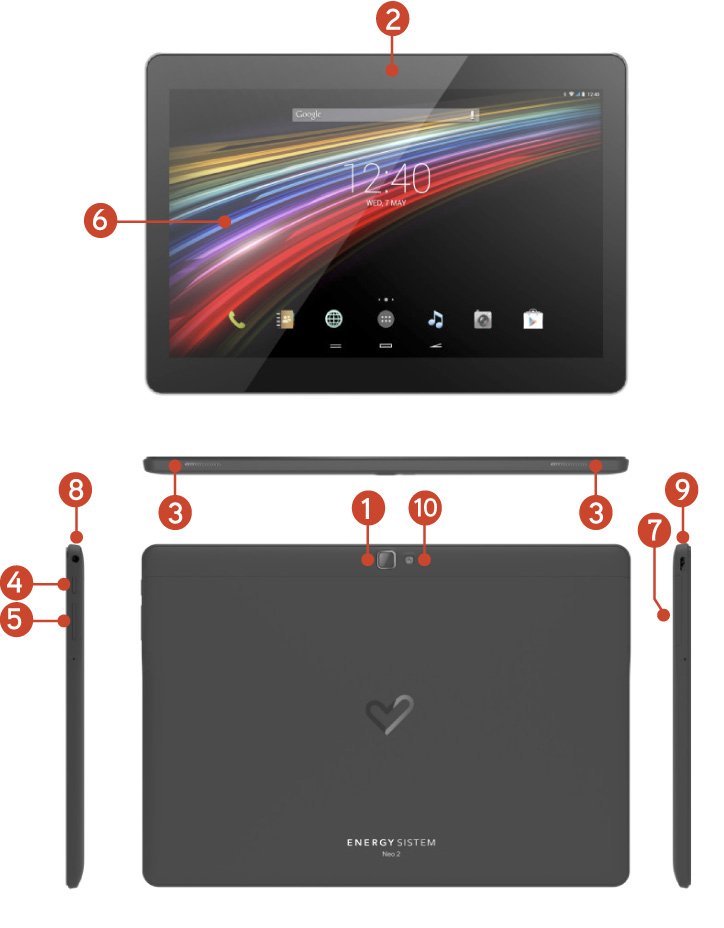
- Rear camera
- Front camera
- Speakers
- Power button
- Volumen control +/-
- Touch panel
- microSD slot
- Headphone output
- MicroUSB conector
- Flash
Battery Management/First use
Your Tablet has a rechargeable lithium ion battery. Initially the battery is charged at the factory, but it is highly recommended that you perform a full charge before the first use.
Recharge the battery by connecting the device to the outlet only using the AC/DC 5V included with the product. The charging time ranges from 2-4 hours, depending on whether the device is off or running. In order to keep the battery in good condition, we recommend that you turn it off while charging and not leave it charging more than 8 hours.
You have several ways to improve the performance and optimize the battery use of your Tablet:
Set your tablet to automatically turn off the display after a few seconds of inactivity in Settings > Display > Sleep after.
Select an ideal display brightness in Settings > Display > Brightness.
Switching On and Off
To switch on your Tablet, press the power button (4) located on the upper left of your device for a few seconds. When the operating system has loaded, unlock the device to start using it. In order to turn off the device, hold the power button (4) until you see the power off menu, then select OK.
Briefly pressing the power button (4) locks/unlocks the device, turning the screen on/off and activating the power saving mode.
Main Gestures
Main gestures
- Tap
Touch the screen briefly

- Double tap
Touch the screen twice quickly
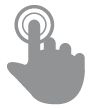
- Drag
Move your finger over the screen without losing contact
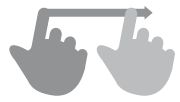
- Slide
Slide your finger quickly over the screen
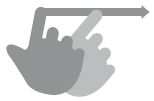
- Press
Touch the screen for an extended period of time

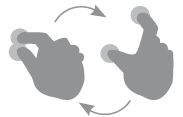
- Zoom
Zoom in and out the screen image
Main Screen
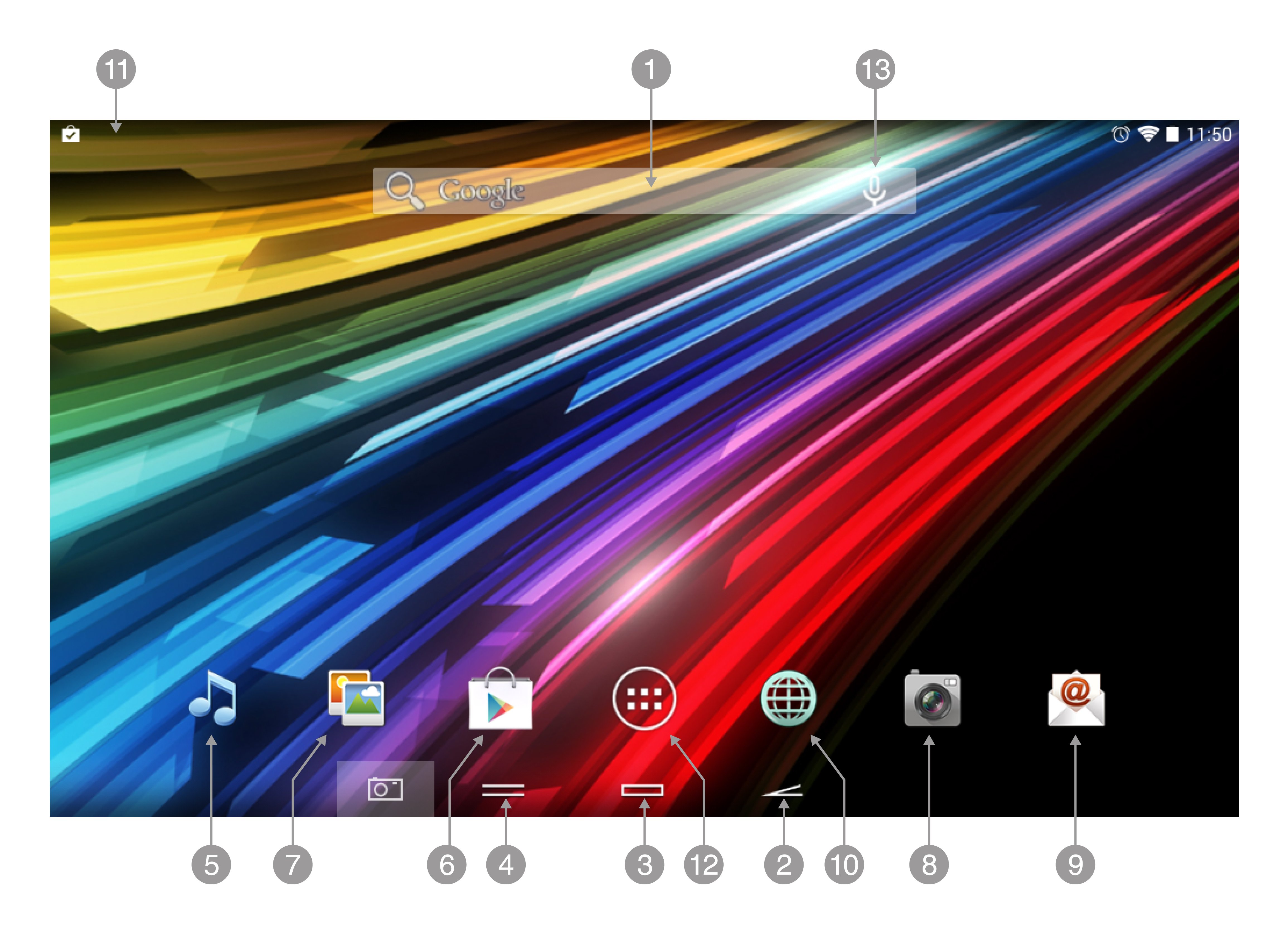
- Search: direct access to Googles™ search engine
- Back: allow you to come back to the previous screen
- Home: returns to the main screen
- Tasks: displays recently opened applications
- Music: music player.
- Play store™: Google's™ app store
- Gallery: Pictures: images gallery
- Camera: access to the integrated camera
- Email: e-mail client
- Internet: web browser
- Status bar: displays information about the wi-fi signal status, battery and clock. Pressing this area displays a larger version showing the date. Pressing it again accesses a basic settings menu that manages the Wi-Fi configuration, gyroscope, screen brightness, notifications and the full settings menu
- Main menu: Button to access to the apps and widgets
- Voice Search: Access to Googles™ voice search and much more
Widgets
In order to add a Widget to one of your desktops, keep pressing it (1), then select "WIDGETS" (2).
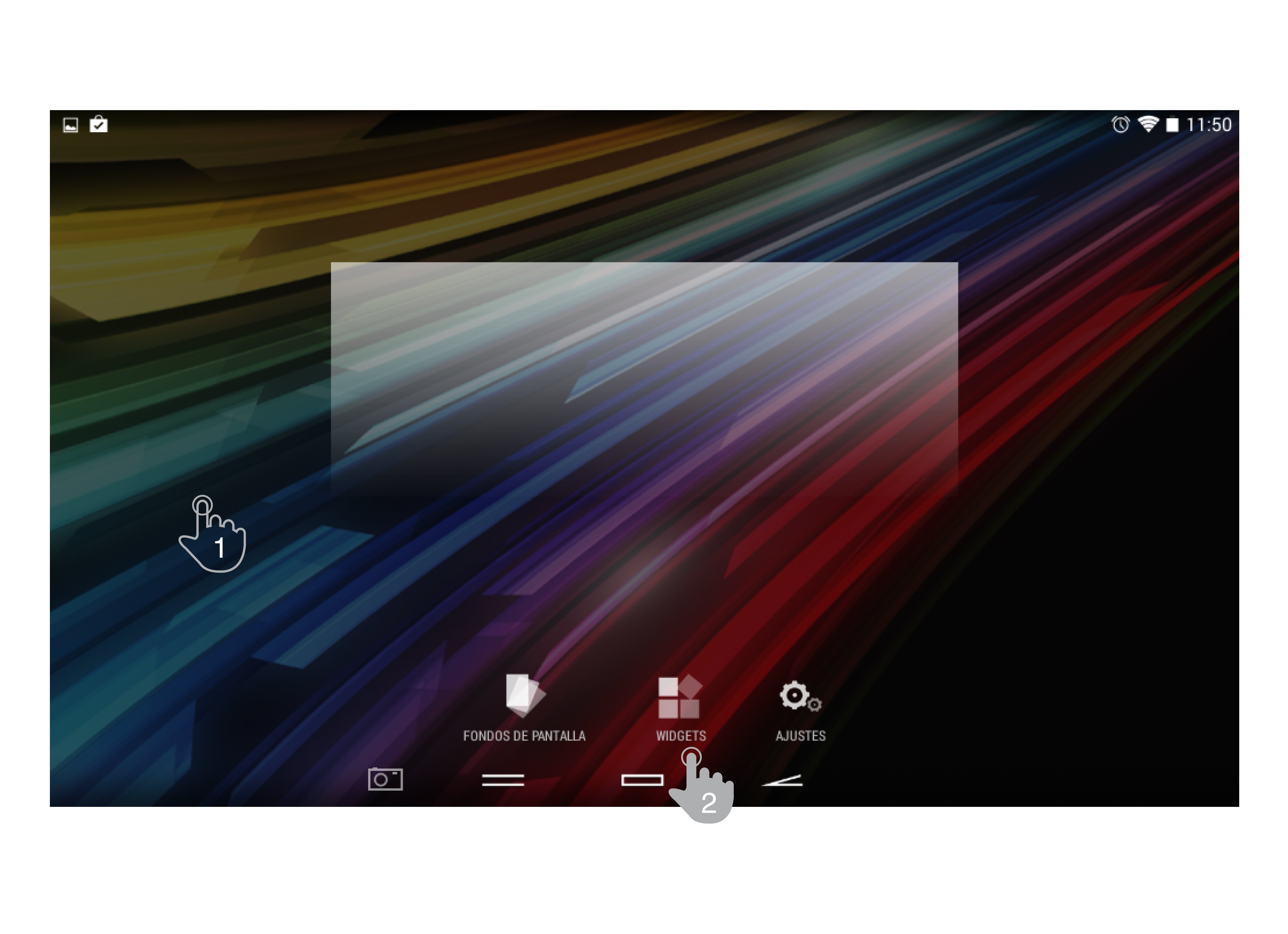
You can slide your finger to the left or right to see all your installed Widgets. Select the one you want to add to your desktop by pressing (4) on the widget and then releasing it on the desktop (5).
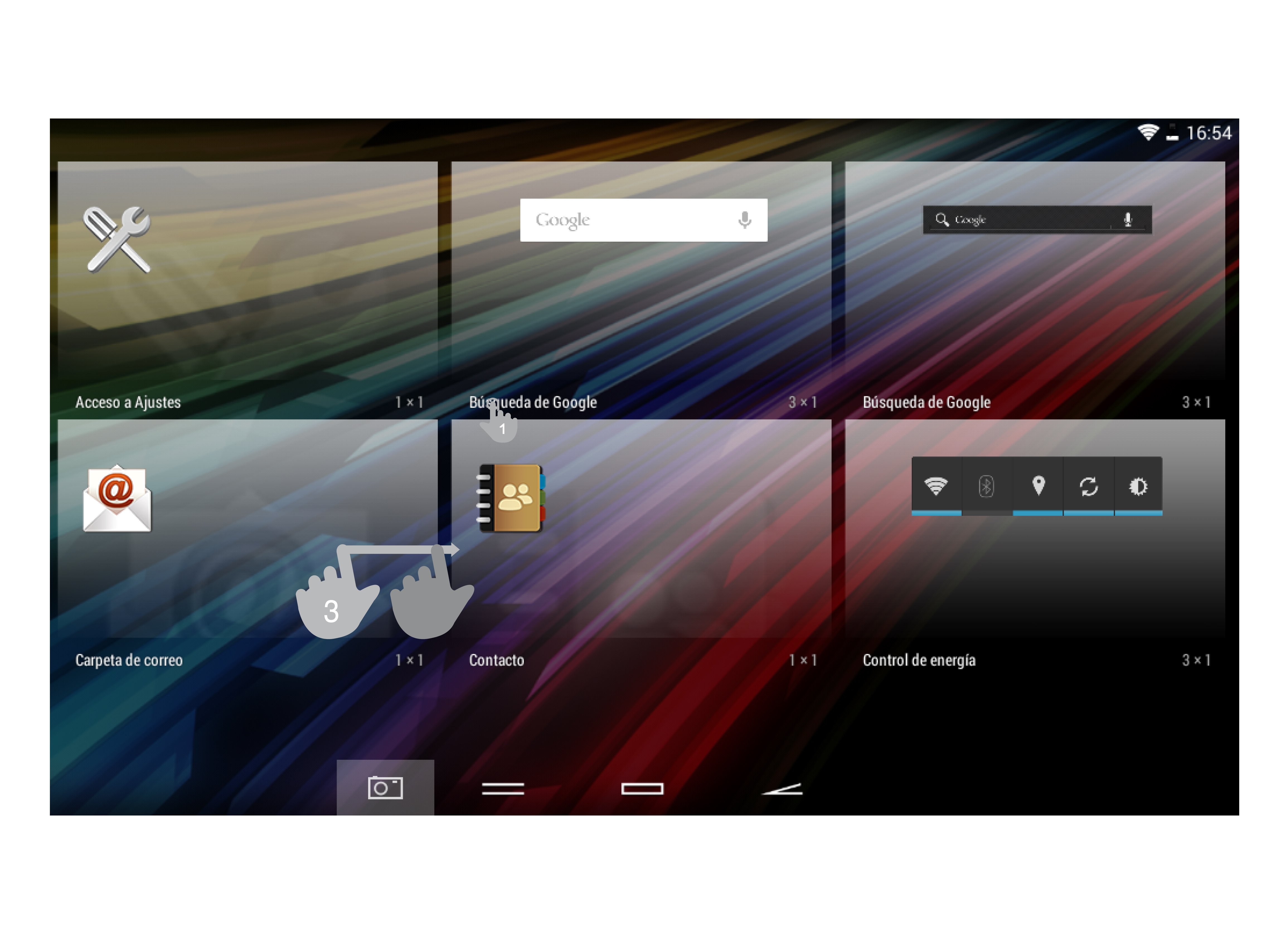
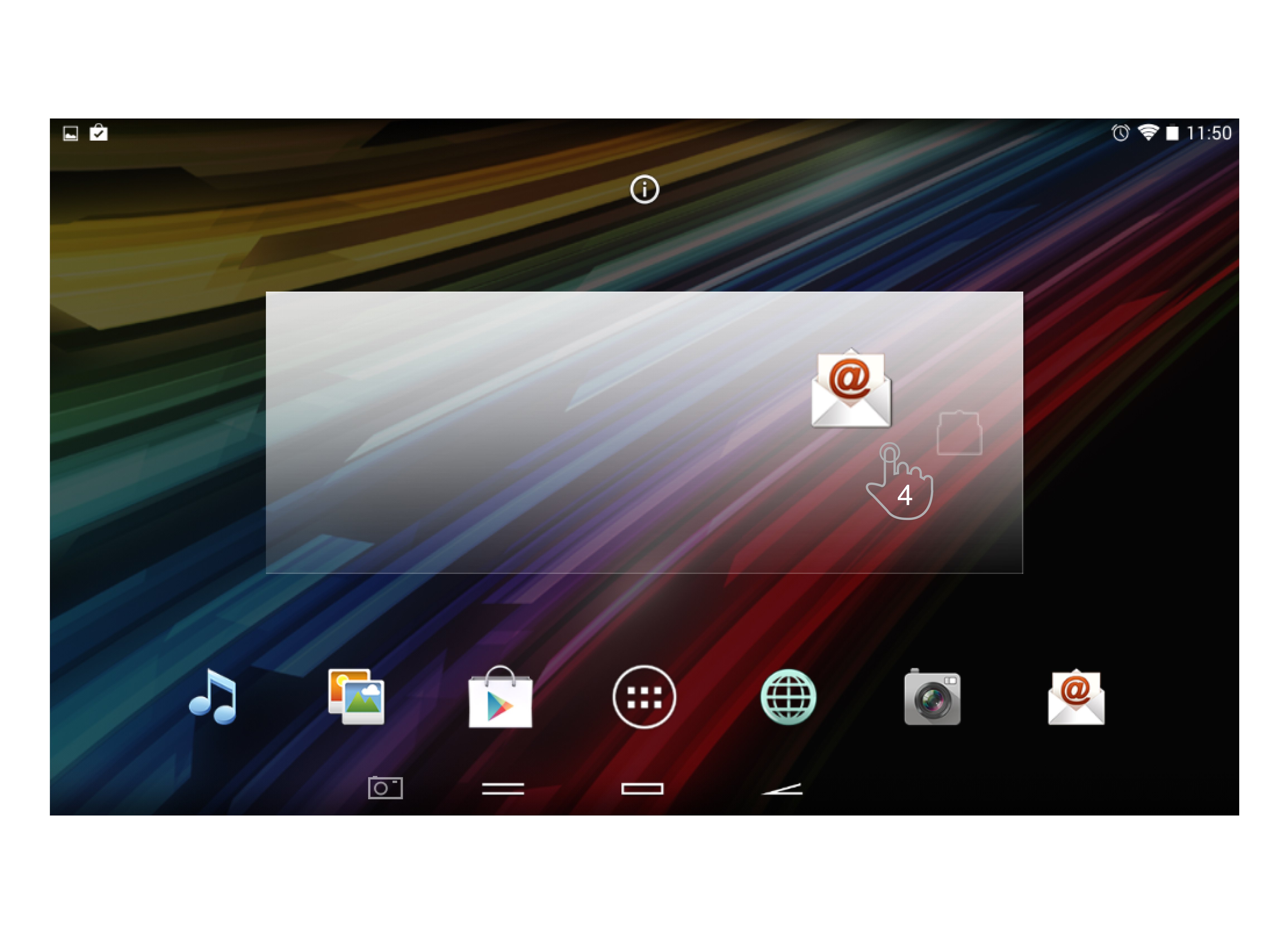
A Widget can be relocated or removed easily. To relocate a widget, tap and hold it for a few seconds. Once the widget is highlighted, you can move it to another position within the desktop.
To remove the widget, tap and hold it for a few seconds and the X icon will appear on the top side of the screen, drag the widget to the X icon and release it.
Wireless conection
Bluetooth Setup
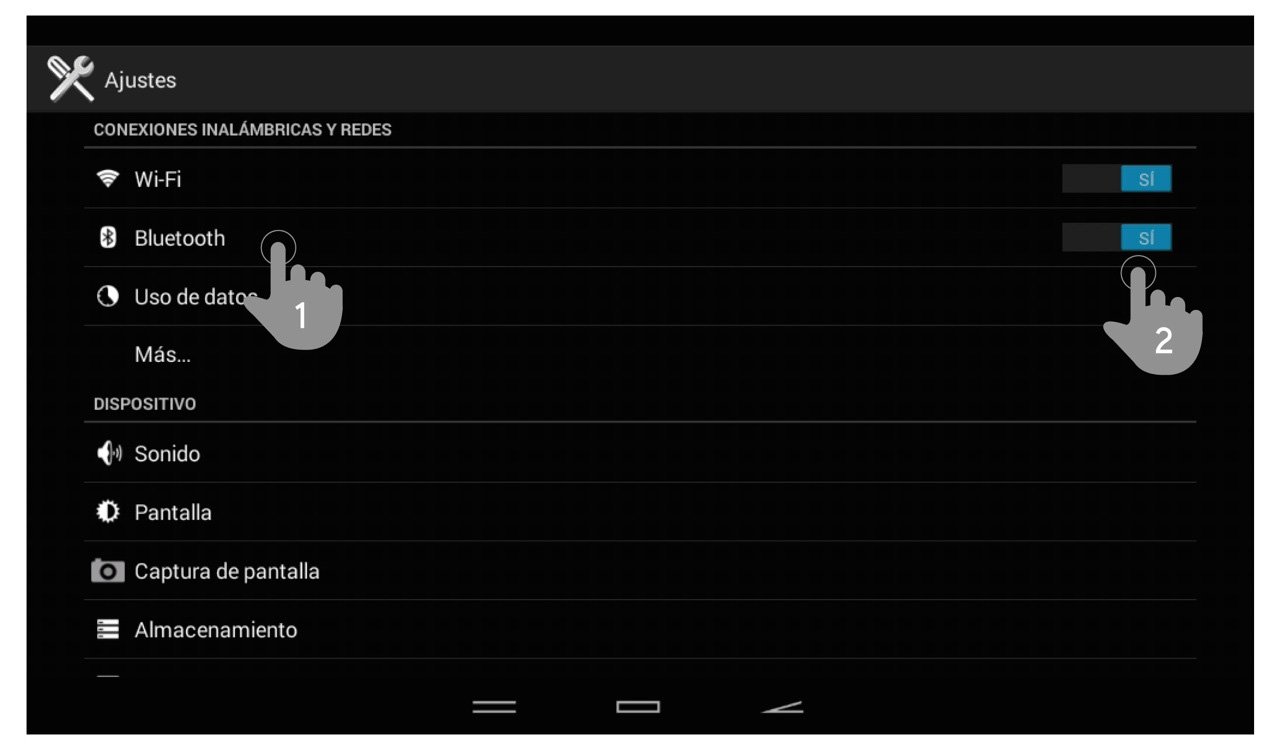
Your Tablet has Bluetooth. To connect your device to any bluetooth device like headphones, PC, speakers, etc. go to Settings > Bluetooth and turn the switch to the ON position. Once the search has finished, select the device to start
the connection.
- Bluetooth.
- Enable the Bluetooth option.
- Select the device you want to connect to.
- Accept the synchronization request.

Wi-Fi Setup
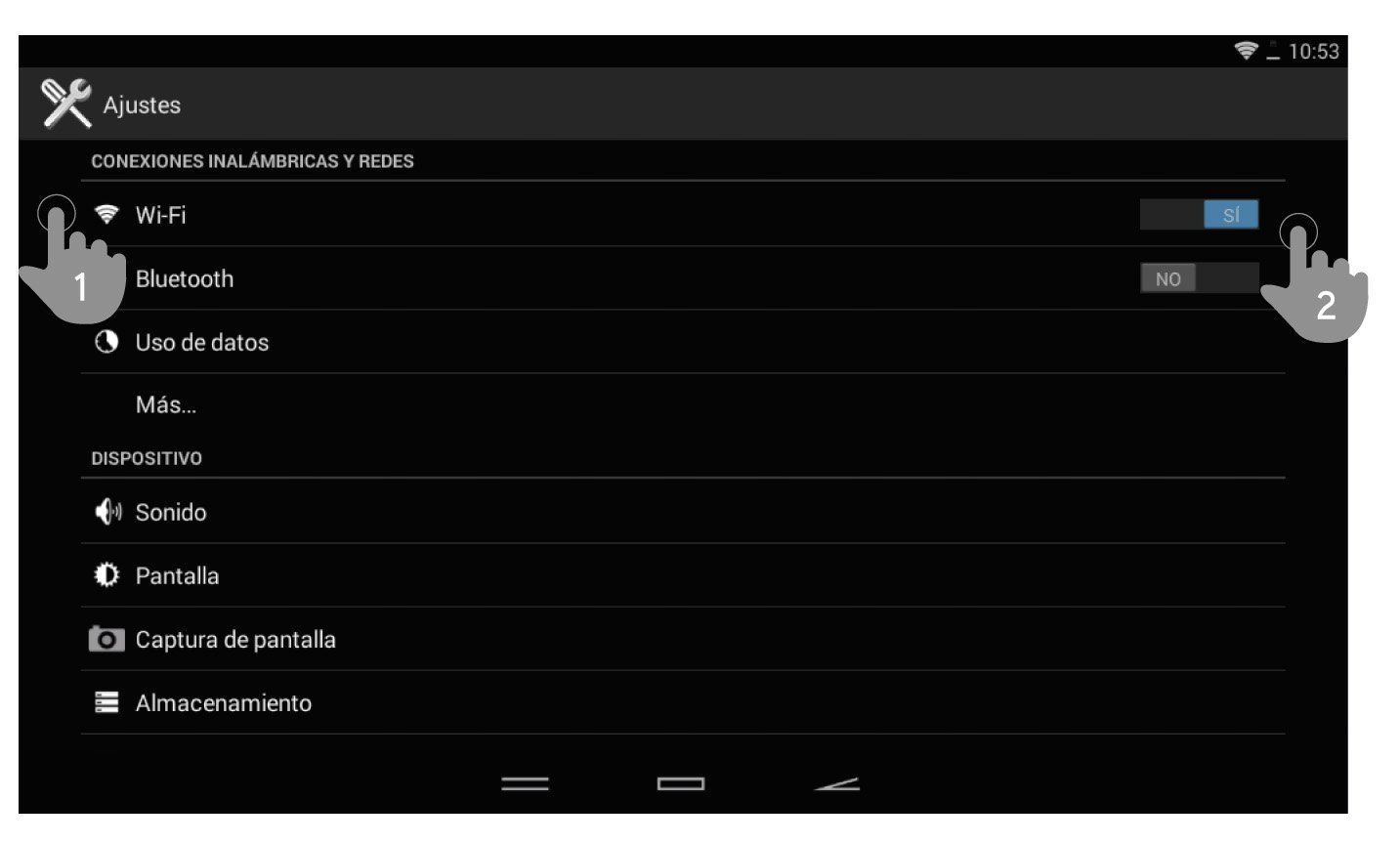
Tap on Settings in the Main screen.
Settings screen.
- Wi-Fi.
- Enable the Wi-Fi option.
- Select your Wi-Fi network.
- Connect.
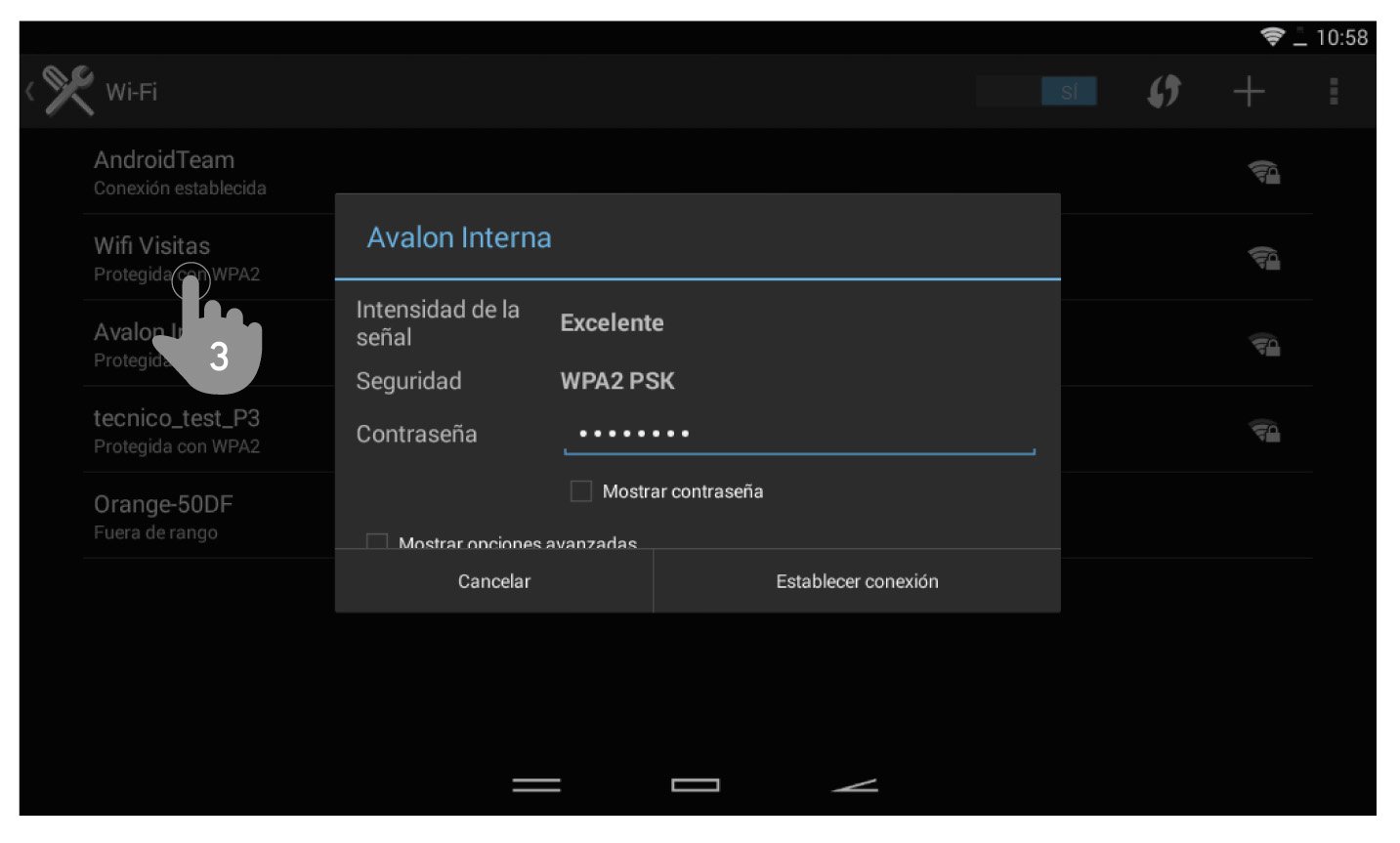
Note: Your Tablet is compatible with the following security and encryption standards: WEP, WPA, WPA2, TKIP and AES. Once you have completed the authentication process successfully, your Tablet will save the Wi-Fi access
data and you will be able to access the Internet. The device will remember the network and will automatically connect when it is available.
Pre-loaded applications
Internet Browser
Your new Tablet has a powerful Web browser among the list of applications installed by default, with which you will be able to surf the Internet quickly and easily. Once the device is connected to a Wi-Fi or 3G network, press the browser icon located on the desktop or in the application menu to start the program. The system will load and display the home page set by default.
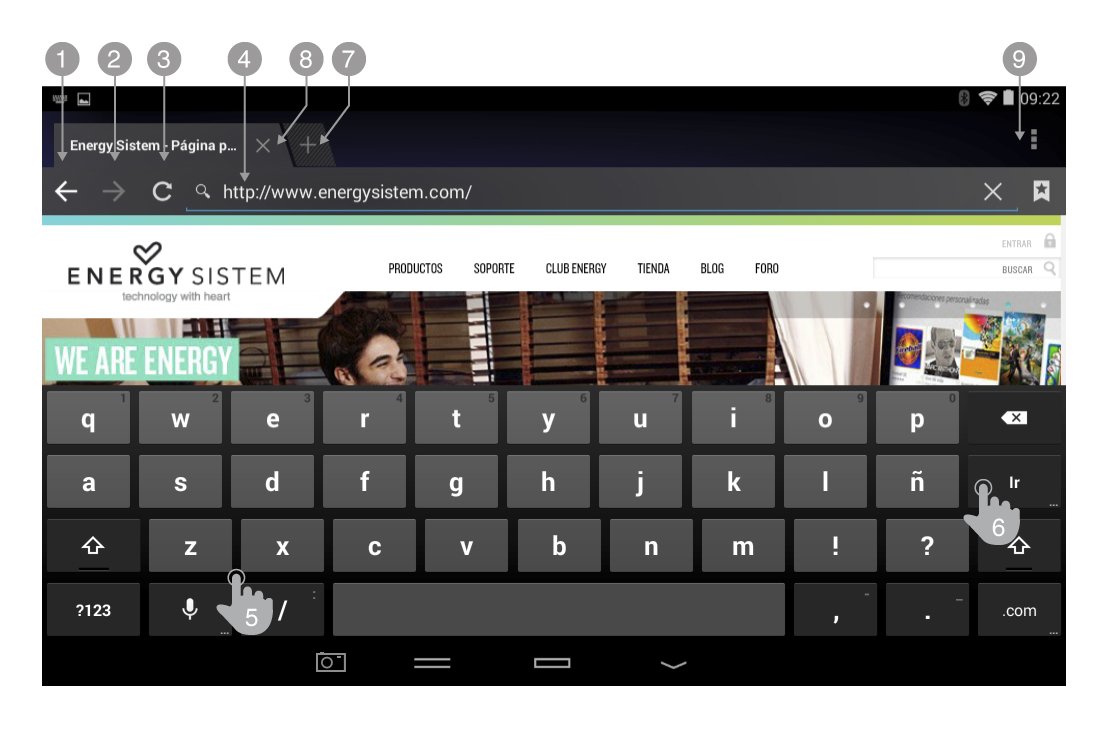
- Back
- Forward
- Reload
- WEB address
- Type
- Tap on Enter key
- New tab
- Close tab
- Options
E-Mail Client
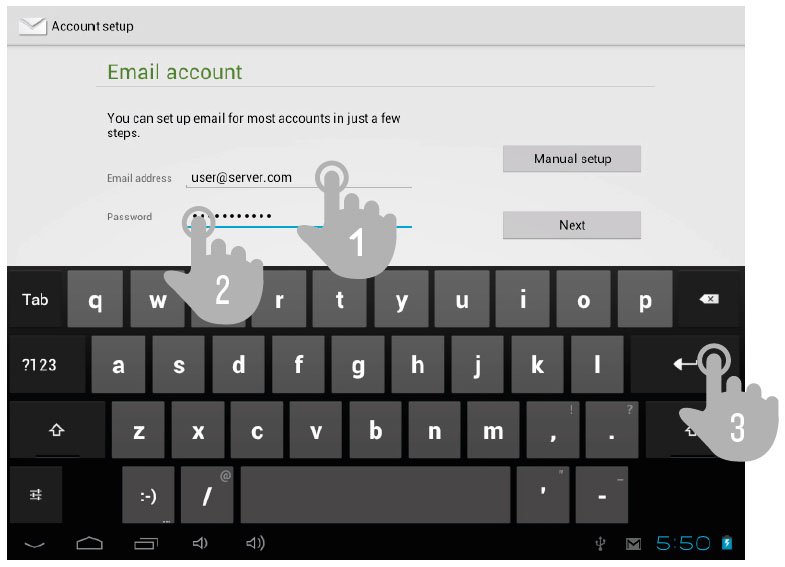
Note: In order to know your account settings, ask your e-mail provider.
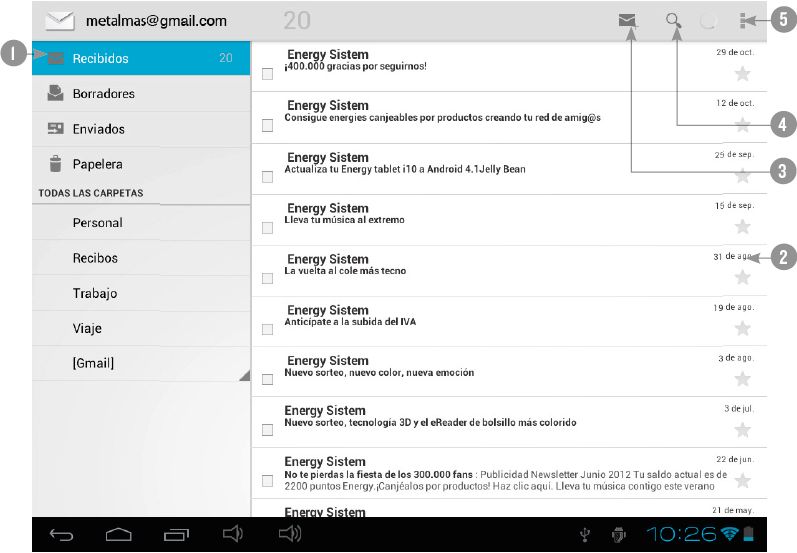
- Selected folder
- E-mails
- New email
- Search
- Options
Music Player
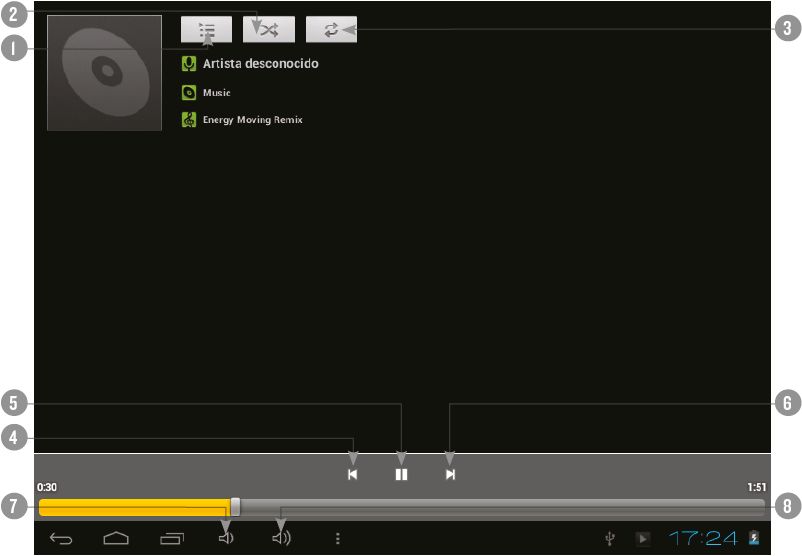
- Playlist
- Random playback
- Repeat
- Previous song
- Play / pause
- Next song
- Decrease volume
- Increase volume
Video Player
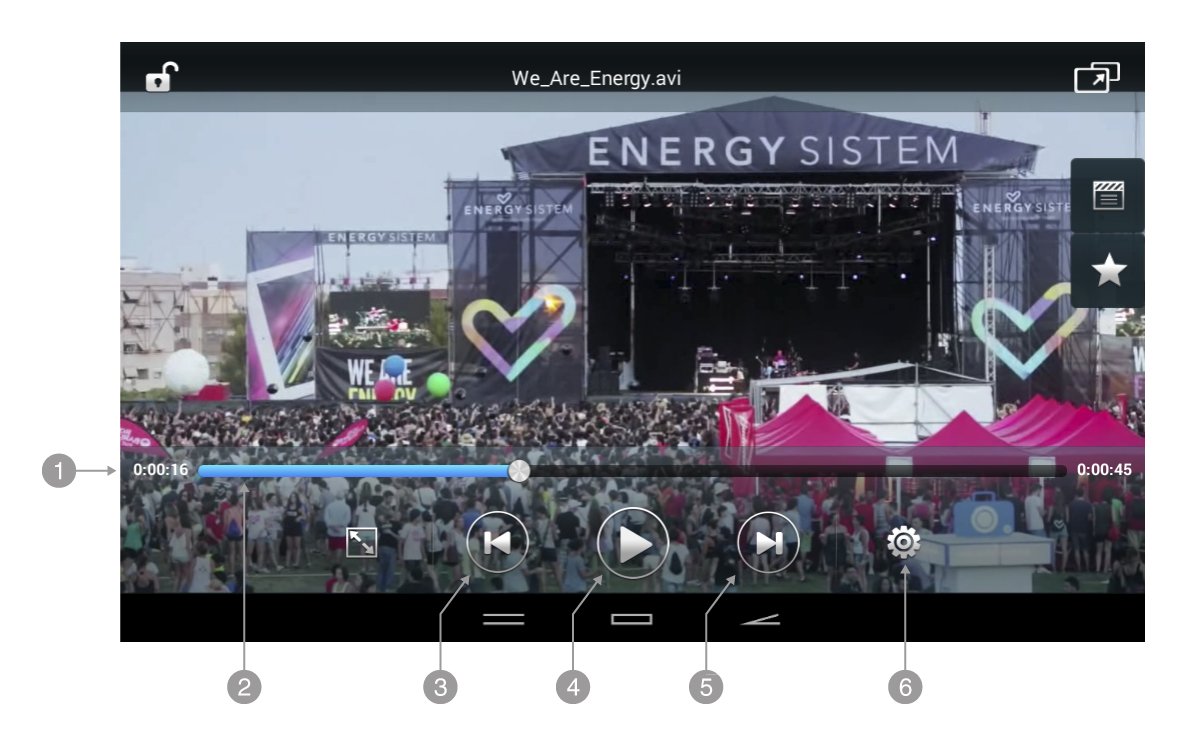
- Elapsed time
- Aspect ratio
- MPrevious video
- Play / Pause
- Next video
- Setup
Camera
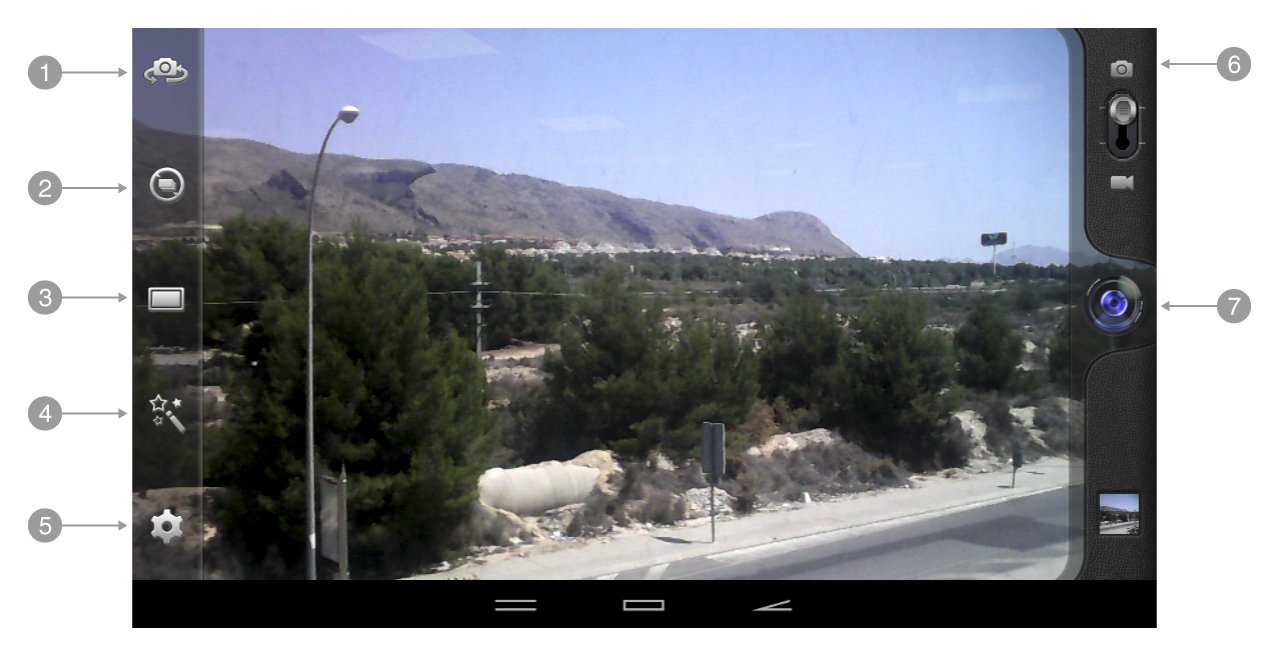
- Switch camera
- Capture normal/continues mode
- Panoramic mode
- Postprocess effect
- Setup
- Photo/video mode
- Shutter
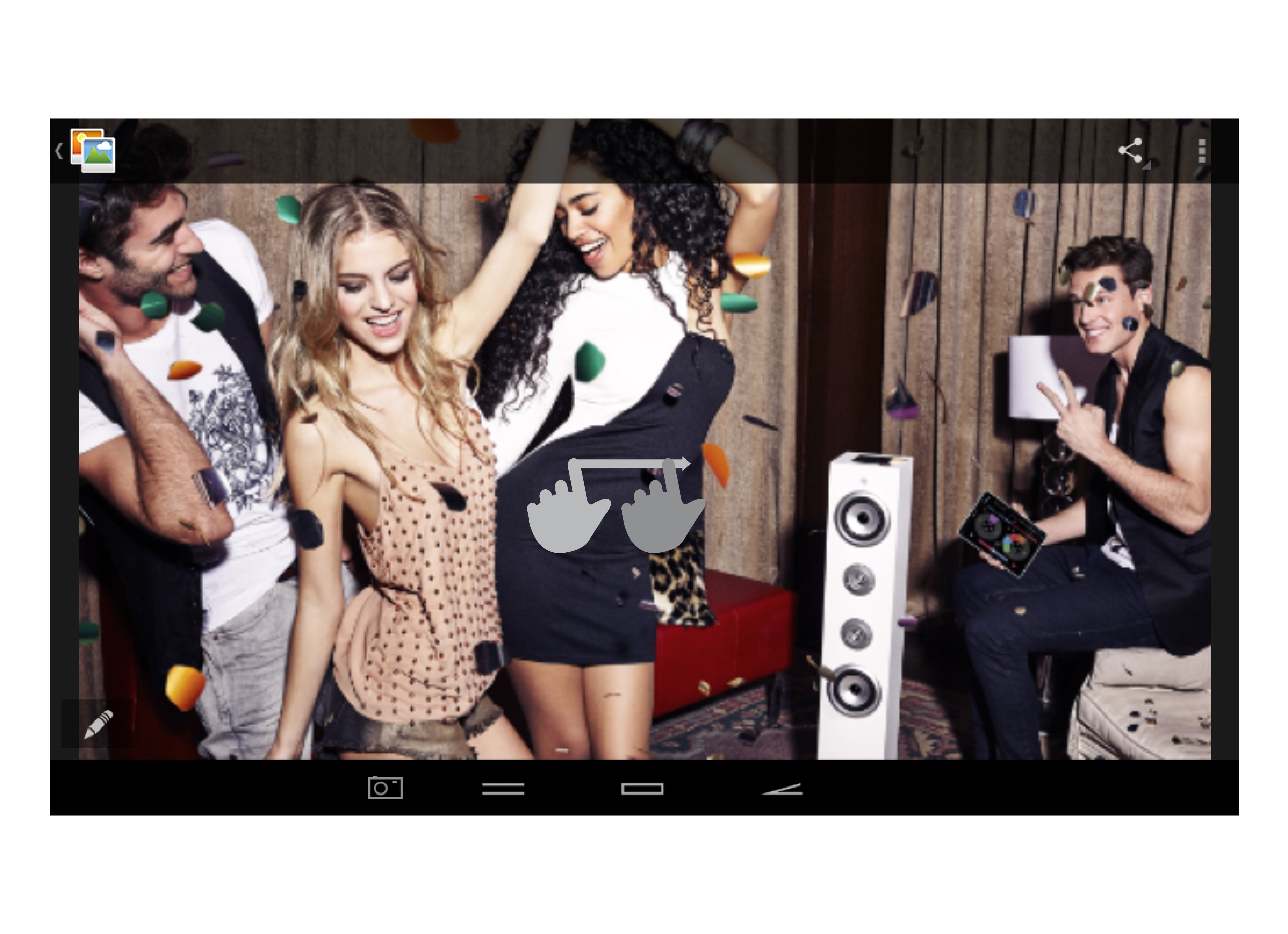
Gallery: Images and Videos
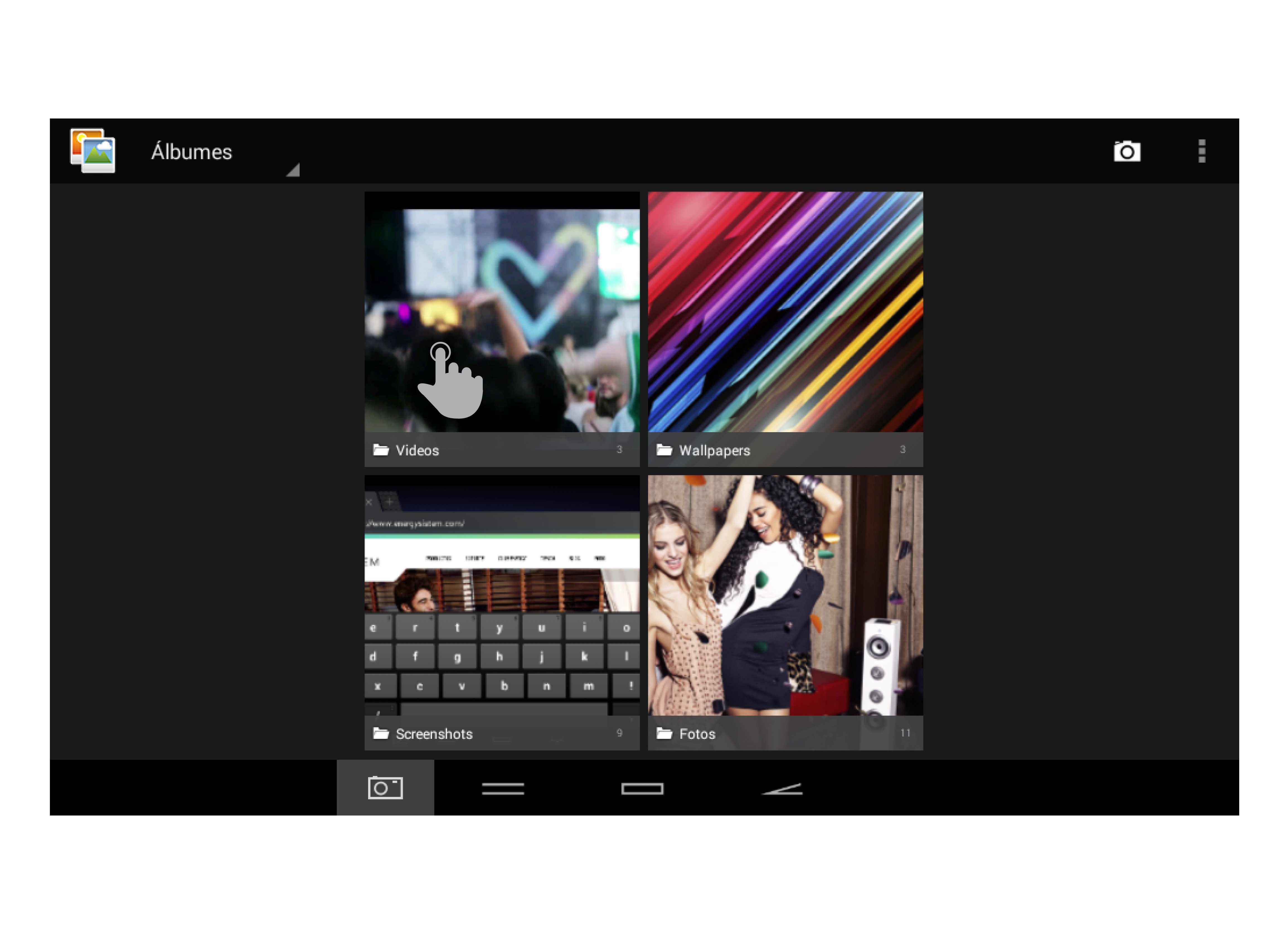
To view the previous / next image or album, slide your finger to the left / right.
To return to the main desktop, press the Back or Home button.
Updating
Your Tablet has an operating system based on Android™ which you can reinstall or update if necessary. Updates will be made via OTA (Over-The-Air) by default, so your Tablet will automatically connect to our servers, download the file and install the new software as soon as it is released.
You can also update your Tablet using your PC. The process is simple but has to be done carefully and only when it is really necessary. If you notice that the device crashes, restarts unexpectedly or you have problems accessing the content of the internal storage memory, you should reinstall or update the operating system to a newer compatible version if available.
Follow these steps to install:
-
Make sure that the battery of your Tablet is fully charged. Otherwise, plug your Tablet to the external power using the provided AC/DC power adapter and wait until the battery is fully charged.
-
Access the www.energysistem.com website from your computer.
-
Enter the "Support" section and choose the type of product "Tablet".
-
Choose your Tablet model from the dropdown list that appears and then download the latest Android™ operating system version available.
Important:
Make sure that the operating system version you are downloading is specific for your model and serial number, otherwise you could damage the device. -
Unzip the file on your computer.
- Open the text file included with the download and follow the instructions to install the new operating system on your Tablet.
Troubleshooting
-
Why can't I play some MP3 files?
The MP3 file must follow the "layer 3" standard for MPEG1, MPEG2 and MPEG 2.5 formats. Otherwise, it must be converted using a specific software. -
My Tablet does not turn on, what can I do?
Make sure that the battery is charged enough to power the device. If after leaving the device charging for at least 30 minutes the problem continues, there may be a problem with the installed operating system. Please, refer to the "Updating" section of this manual. -
Why can't I play some WMA files?
Make sure you are not trying to play WMA file with DRM. -
Why can't I see my video, image or text files when using the music player?
Generally, applications only display the files supported by the program. Therefore, while you browse the folders using a specific application, you can only see the files associated to that program (songs in the music player, videos in the movie player, etc). In order to see all the files stored in the internal memory, start the FileXplorer application from the application menu. -
Which video formats are compatible with my Tablet?
Your Tablet can play multiple video formats wihtout recoding. -
Why can't I display my .jpg images?
Many digital cameras and image editing software add hidden data to .jpg files. This can prevent your Tablet from loading the images. Try to delete them and save the image with another name. -
The screen has turned black and the device does not respond.
Keep the power button pressed for a few seconds to reboot your tablet. -
The built-in memory of the Tablet is lower than the specified in the specifications. Why?
The Android™ operating system and the preinstalled applications need approximately 1.5GB to work. Therefore, the available memory for additional data is less than the specified. -
I updated the firmware but I no longer have any multimedia files nor wallpapers. How can I retrieve the contents that came preinstalled?
Before any system update, we recommend making a backup of everything you want to keep. In www.energysistem.com, you will find not only all the content that came preinstalled in your Tablet, but many more multimedia files and additional wallpapers. -
What must I do to install an application?
First, make sure that the file has the Android™ application extension (.APK). Android™ will ask you to activate the application installation from "Unknown sources", this option is disabled for safety. To authorize the installation of applications, you only have to follow the instructions on the screen the first time you try to install an application: Settings / Security / Unknown sources (activate). - How long does the battery last?
It depends largely on the use, such as the screen brightness, use of headphones or speaker, if the Wi-Fi connection is enabled or disabled and the power consumtion required by the apps, games, etc.
Warranty
Energy Sistem Soyntec SA is liable for any lack of conformity which exists at the time the goods were purchased during a period of 36 months. Batteries are excluded from the 36-month warranty, having a warranty
period of 12 months.
This warranty covers any defects in workmanship or materials. This warranty does not cover any failure of the product due to accidents, misuse or alteration made by an unauthorized person.
The special 36-months warranty is valid for the European Union. For other countries, please refer to your specific legislation or your local distributor.
Warranty Procedure
Visit the Support section at http://www.energysistem.com/en/support and select your product to view the FAQ (Frequently Asked Questions), user manuals, drivers and updates available, as the possibility to submit a query to the Technical Service or consult the warranty.
- You can check the availability of the user manual in your language at http://www.energysistem.com/en/guide/42243
- Alternatively, you may prefer to contact the distributor from which you purchased the product, presenting the purchase receipt or invoice.
Specifications are subject to change without notice.
Trademarks. All company, brand and product names are trademarks or registered trademarks of their respective companies.
© 2014 by Energy Sistem Soyntec S.A. All rights reserved.
Declaration of Conformity
Manufacturer Name: Energy Sistem Soyntec S.A. _Date:_22-12-2014
Address: Pol. Ind. Finestrat C/. Calpe, 1 - 03509 Finestrat Alicante (Spain).
Tel: 902 388 388 // Fax: 902 119 034 // NIF: A53107488
We declare under our own exclusive responsibility that the product:
Energy Sistem™ Tablet 10.1" Neo 2
Manufacturing Country: China
Is in compliance with the essential norms and standards of the Directive 1999/5/EC of the European Parliament and of the Council of March 09th 1999.
Note: The present device could contain connections to other sites or websites operated by third parties not related to Energy Sistem Soyntec S.A. These connections are provided for your information or convenience; Energy Sistem Soyntec S.A is not responsible for their availability, content, update, adequacy or accuracy.
These external connections might contain or link references to trademarks, patents, registered information, technologies, products, processes or rights property of other companies or individuals. All the rights reserved are property of their respective owners, and your are not granted with any license or right related to those brand names, patents, industrial sectrets, technologies, products, processes or other rights property of other companies or individuals.