


Introduction
Thank you for your trust in us and for buying the new Tablet Windows LEGO® Edition. We hope you will enjoy it.
This model has an 8" IPS HD (800x1280 pixels) touchscreen, Intel Quad Core processor up to 1.83 GHz, Bluetooth 4.0, Wi-Fi, front camera and 2 Mpx rear camera and exclusive LEGO® content that provides you with hours of fun.
Before you start using your tablet we recommend you to read this manual and familiarize yourself with it. It only takes a couple of minutes and it will help you to enjoy your device with maximum performance.
Care and maintenance
- Do not expose your Tablet to impacts, dust, direct sunlight, humidity or high temperatures.
- Do not use abrasive or corrosive cleaners.
- Keep the device clean and dust free using a soft, dry cloth.
- Charge the battery when the display shows the low battery icon. Only charge with the adapter included in your tablet.
-
Do not disassemble the device. Any repairs must be carried out by Energy Sistem Soyntec S.A. qualified personnel only.
Key Features
- 10.1" IPS screen (1280x800 pixels).
- Capacitive multitouch screen.
- Quad Core Intel Atom up to 1.83GHz processor.
- 2GB RAM.
- 32GB eMMC internal memory expandable up to 64GB via microSD.
- Wi-Fi connection (802.11 b/g/n).
- Bluetooth 4.0.
- Built-in front camera 2 Mpx.
- Built-in rear camera 5 Mpx.
- microHDMI out.
- USB-Host.
- USB-OTG .
- Built-in speakers 2x1w.
- Built-in omnidirectional microphone.
- Motion sensor (accelerometer).
- Battery capacity: 3.7v/7.000mAh.
- Autonomy: Until 5 hours surfing in internet under Wi-Fi connection.
- AC/DC adapter 100-240v 50-60Hz DC 9V/2A.
Product Content
- Tablet 8 Windows LEGO® Edition.
- Quick guide.
- 1 x USB-microUSB cable
- USB Host cable
- AC/DC (Europlug) 100-240V AC 50-60Hz power adapter.
General overview
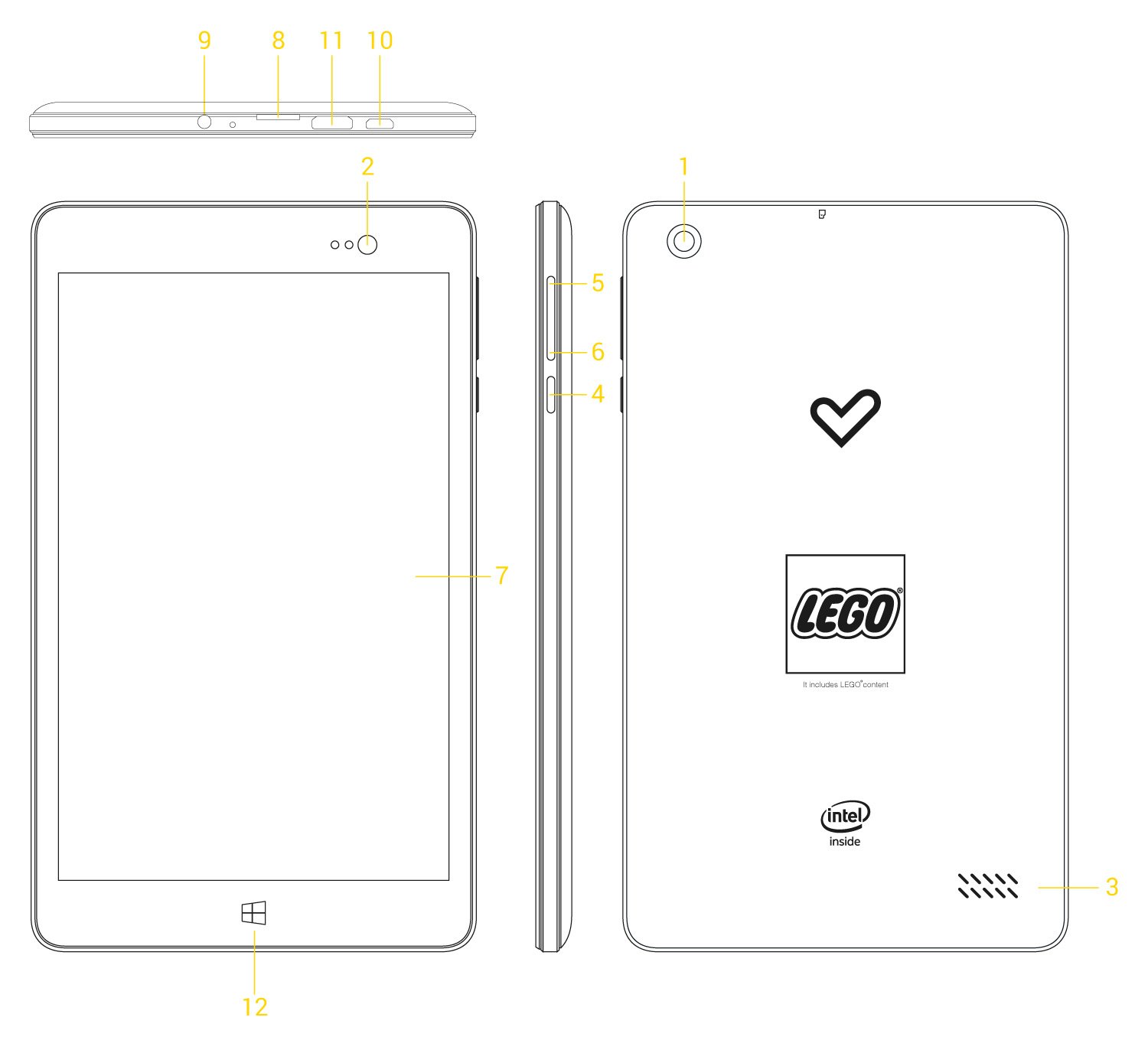
- Rear camera
- Front camera
- Speaker
- Power button
- Volume button +
- Volume button -
- Touchscreen
- microSD slot
- Earphones output
- MicroUSB connector
- MicroHDMI output
- Windows button
Battery Management/First use
Your Tablet Windows has a built-in rechargeable lithium ion battery. Recharge the battery by connecting the device to the outlet only using the power adapter and the USB cable included with the product. The charging time ranges from 2-4 hours, depending on whether the device is off or on.
You have several ways to improve the performance and optimize the battery use of your tablet, setting the automatic shutdown and adjusting the brightness level of the screen:
Switching on and off
To turn your Tablet on, press the power button (4) for a few seconds. When the operating system has loaded, unlock the device to start using it. To do so drag the lock screen upwards and identify yourself.
During the first boot, follow the steps that the device indicates you to create the user account and set up your device like you want. In this process you will have to introduce a user account compatible with Microsoft Windows™, that you will be able to create if you don't have one.
In order to turn off the device, hold the power button (4) until you see the lock screen and drag it down.
Briefly press the power button (4) to lock/unlock the device thus, turning the screen on/off and activating the power saving mode.
Main Gestures
Main gestures
- Tap
Touch the screen briefly

- Double tap
Touch the screen twice quickly

- Drag
Move your finger over the screen without losing contact
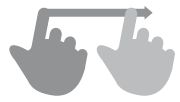
- Slide
Slide your finger quickly over the screen
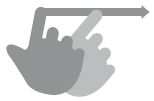
- Press
Touch the screen for an extended period of time

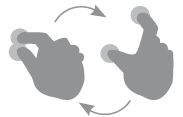
- Zoom
Zoom in and out the screen image
Main Screen
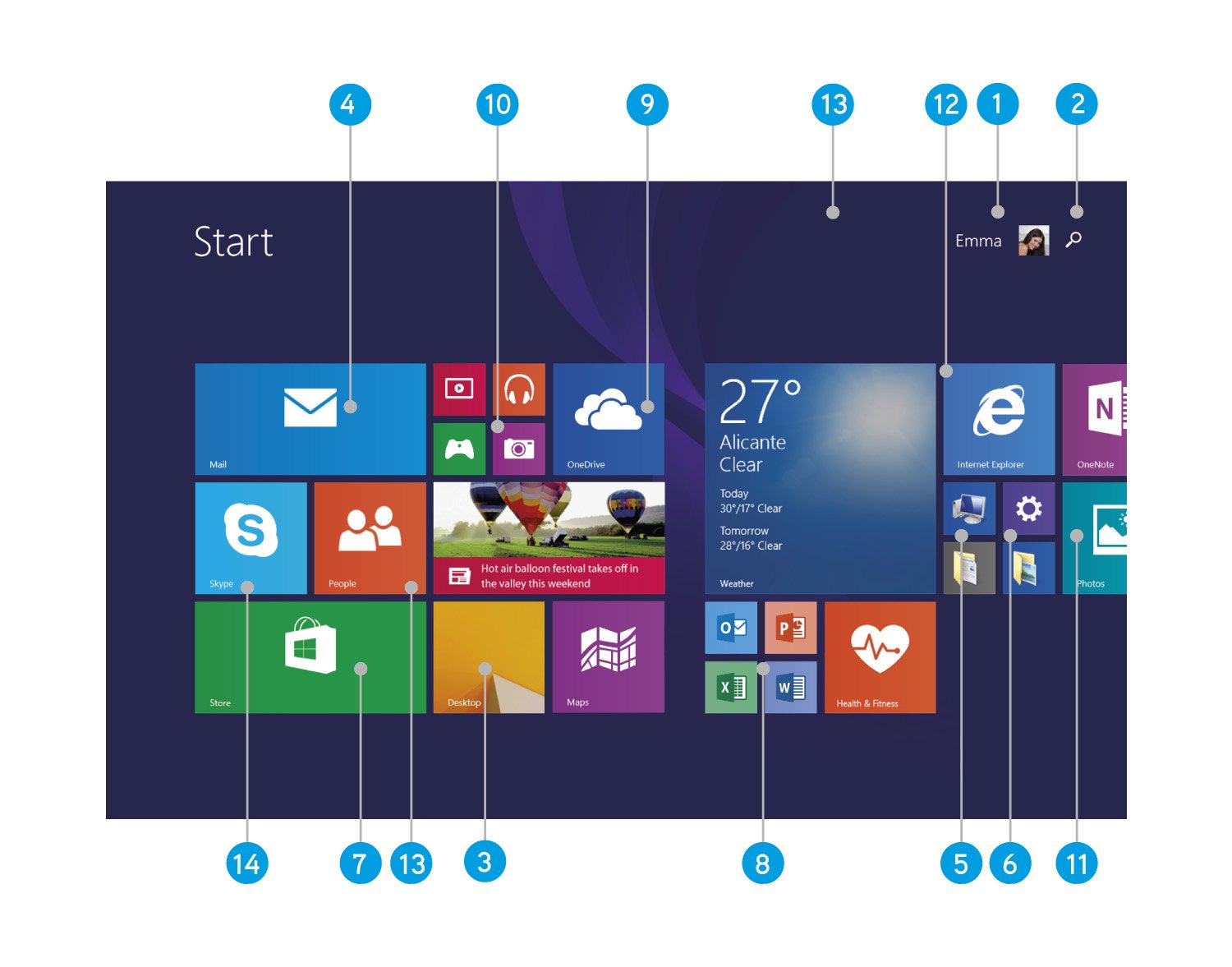
- User: shows the opened user account
- Search: direct access to tablet, windows store and applications search engine.
- Desktop: classic windows desktop mode
- Email: e-mail client
- System: Access to storage units from device
- Settings: configure your Windows™ system
- Store: Windows™ app store
- Office: Microsoft Word, Excel, Outlook...
- OneDrive: Cloud storage
- Camera: Access to the integrated camera
- Gallery: Pictures: images gallery
- Internet explorer: web browser
- People: contact list
- Skype: videocalls, messages...
Wireless conection
Bluetooth Setup
Your Tablet has Bluetooth for connecting your device with headphones, computers, tablets, smartphones, etc. To pair the Bluetooth device follow the steps below.
- Enables the device in pairing mode.
- Open access Settings, click Change settings PC> PC> Bluetooth devices.
- You must make sure that Bluetooth is turned on, and began to appear available Bluetooth devices within range.
- Follow the onscreen instructions to complete the device pairing.
Configuring Wi-Fi
Your Tablet has WiFi. To connect your device to a wireless network the following steps.
- Go into settings and click the wireless network icon.
- Click the wireless network you want to connect and click connect.
- If network has security, password will be required. Type the security of the network and click Next.
- Now you must indicate whether you want to share your files and devices with other computers on the network and indicate what type of network you are connecting
Note: Your Tablet is compatible with security standards WEP, WPA, WPA2, TKIP and AES. Once you have completed the authentication process successfully, your Tablet save the data
Access to the Wi-Fi network and you will be ready for you to use the Internet. The device will remember the network and
automatically connect to it when it becomes available.
Pre-loaded applications
Internet Explorer
Your new Tablet has a powerful Internet Explorer 11 Web browser among the list of applications installed by default, with which you will be able to surf the Internet quickly and easily. Once the device is connected to a Wi-Fi or 3G network, press the browser icon located on the desktop or in the application menu to start the program. The system will load and display the home page set by default.
Your Tablet has a management application installed by default email which allows you to work with your email account conveniently and effectively. In addition, with Microsoft Office 365 license, you also have Microsoft Outlook to feel an extended experience in working with your email.
For the configuration parameters of your query to your account email provider.
Microsoft Office 365
Your Tablet includes office set Mircrosoft Office 365 which includes, among others, Microsoft Word, Microsoft Excel and Microsoft Outlook applications. Extensive experience using your Tablet thanks to the one-year license that we include with it.
OneDrive
OneDrive allows us to share documents in the cloud and download them easily from any Internet-connected device. You can access to all your documents wherever you are, and your Tablet have 1Tb of free storage available.
Skype
Skype lets you keep in touch with your home, work or wherever you are with everyone. In addition, this platform can be installed on your tablet, PC, smartphone, etc. With your Tablet you can enjoy 60 minutes of free calls per month for one year.
Playing Audio and Video
You can use Windows Media Player to play music and videos. Supports the most common audio and video formats and allows multiple adjustments in the same formats.
Gallery: Pictures
You can use this application to view the pictures you have on your Tablet and OneDrive as well. Also, if you have pictures on your phone, you can import them using this application.
To display your pictures, open the pictures application is in the home screen. All pictures in your Pictures folder appear in this application.
Camera
Your Tablet Camera has a preinstalled application and other applications can also be used Camera as well downloading them from the Windows Store.
To take a picture or record a video, you need to open Camera and press the Photo button or Video button on the screen. You can modify the settings of the camera to improve your photos and videos.
Updating
Your Tablet offers Windows operating system # trade # 8.1 installed, you can reinstall or update if necessary. By default, automatic updates are enabled, so your Tablet will automatically alert you when an update is available to install.
You can also reinstall the factory settings of the operating system. Follow these steps for installation:
- Make sure that your Tablet battery is fully charged. Otherwise your Tablet connected to external power using the AC adapter / DC provided and wait until the battery is fully charged.
- Slide the bar on the right side in the main menu, and click on the search icon.
- Make the search for "Recovery" and enter it.
- Choose the option you want and follow the instructions to restore your system
Troubleshooting
-
Why can't I play some MP3 files?
The MP3 file must follow the "layer 3" standard for MPEG1, MPEG2 and MPEG 2.5 formats. Otherwise, it must be converted using a specific software. -
My Tablet does not turn on, what can I do?
Make sure that the battery is charged enough to power the device. If after leaving the device charging for at least 30 minutes the problem continues, there may be a problem with the installed operating system. Please, refer to the "Updating" section of this manual. -
Why can't I play some WMA files?
Make sure you are not trying to play WMA file with DRM. -
Why can't I see my video, image or text files when using the music player?
Generally, applications only display the files supported by the program. Therefore, while you browse the folders using a specific application, you can only see the files associated to that program (songs in the music player, videos in the movie player, etc). In order to see all the files stored in the internal memory, start the FileXplorer application from the application menu. -
Which video formats are compatible with my Tablet?
Your Tablet can play multiple video formats wihtout recoding. -
Why can't I display my .jpg images?
Many digital cameras and image editing software add hidden data to .jpg files. This can prevent your Tablet from loading the images. Try to delete them and save the image with another name. -
The built-in memory of the Tablet is lower than the specified in the specifications. Why?
The Windows™ operating system and the preinstalled applications need memory to work. Therefore, the available memory for additional data is less than the specified. -
I updated the firmware but I no longer have any multimedia files nor wallpapers. How can I retrieve the contents that came preinstalled?
Before any system update, we recommend making a backup of everything you want to keep. In www.energysistem.com, you will find not only all the content that came preinstalled in your Tablet, but many more multimedia files and additional wallpapers. -
What must I do to install an application?
First, make sure that the file has the Android™ application extension (.APK). Android™ will ask you to activate the application installation from "Unknown sources", this option is disabled for safety. To authorize the installation of applications, you only have to follow the instructions on the screen the first time you try to install an application: Settings / Security / Unknown sources (activate). - How long does the battery last? It depends largely on the use, such as the screen brightness, use of headphones or speaker, if the Wi-Fi connection is enabled or disabled and the power consumtion required by the apps, games, etc.
Warranty
Energy Sistem Technology, S.A. is liable for any lack of conformity which exists at the time the goods were purchased during a period of 36 months. Batteries are excluded from the 36-month warranty, having a warranty period of 12 months. This warranty covers any defects in workmanship or materials.
This warranty does not cover any failure of the product due to accidents, misuse or alteration made by an unauthorized person. The special 36-months warranty is valid for the European Union. For other countries, please refer to the specific legislation or your local distributor.
Warranty procedure
Visit the Support section at http://www.energysistem.com/en/support and select your product to view the FAQ (Frequently Asked Questions), user manual, drivers and updates available, submit a query to the Technical Service or manage the warranty.
-
You can check the availability of the user manual in your language at http://www.energysistem.com/guide/42265
- Alternatively, you may prefer to contact the distributor from which you purchased the product, presenting the purchase receipt or invoice.
Important: This warranty does not cover any damage or loss to any data stored in warranty products, therefore Energy Sistem's Technical Service will not assume any loss of the above mentioned information. So it is recommended to make a backup of your data and remove any data or personal data from its internal memory before you send the product, or to send it only with the original data. Specifications are subject to change without notice.
Trademarks
All company, brand and product names are trademarks or registered trademarks of their respective companies.
© 2015 by Energy Sistem Technology, S.A. All rights reserved.
Notice: The present device could contain connections to other sites or websites operated by third parties not related to Energy Sistem Technology, S.A. These connections are provided for your information or convenience; Energy Sistem is not responsible for their availability, content, update, adequacy or accuracy. These external connections might contain or link references to trademarks, patents, registered information, technologies, products, processes or rights property of other companies or individuals. All the rights reserved are property of their respective owners, and your are not granted with any license or right related to those brand names, patents, industrial secrets, technologies, products, processes or other rights property of other companies or individuals.
Declaration of conformity
Manufacturer Name:
Energy Sistem Technology, S.A.
Address: C/ Calpe, 1.
03509 Finestrat - Alicante (Spain).
Tel: 902 388 388 // Fax: 902 119 034
NIF: A53107488
We declare under our own exclusive responsibility that the product Energy Sistem™ Tablet Windows LEGO® Edition
Manufacturing country: China
Is in compliance with the essential norms and standards of the Directive 99/05/CE of the European Parliament and of the Council of 09 March 1999. You may request a copy of the declaration of conformity at C/ Calpe, 1 - 03509 Finestrat - Alicante (Spain) Tel. +34 966 831 05
Finestrat, 01 November 2015