


Introduction
Thank you for your trust in our company and for buying the new Tower 8 g2. We hope you enjoy it.
Before starting to use your Tower 8 g2 we strongly recommend to read this manual in order to get used to it.
Care and maintenance
-
Do not expose your Tower 8 g2 to impacts, dust, humidity or high temperatures.
-
Do not use neither corrosive nor abrasive cleaning products.
- Do not dismantle the device. All reparation works should be carried out exclusively by qualified staff of Energy Sistem Technology, S.A.
Technical specifications
AUDIO
- 2.1 stereo system
- Power: 120 W
- Digital audio processor (DSP): 24 bits/ 96 kHz
- 1.5" silk dome tweeter
- 4" full range bullet front speakers
- 6.5" subwoofer
- Frequency response: 20 Hz ~ 20 kHz
- Two-band analogue equalizer
- Wooden cabinet speakers
BLUETOOTH CONNECTION
- A2DP; AVRCP protocols
- Bluetooth 5.0 Class II 2.4 GHz
- Distance range up to 20 m
DIGITAL INPUTS
- S/PDIF digital optical input
- MicroSD card and USB reader (up to 64 GB) Supported formats: WAV and MP3
ANALOGUE INPUTS
- 3.5 mm mini jack input (analogue stereo input)
- RCA audio-in (analogue stereo input)
ANALOGUE OUTPUTS
- RCA audio-out (analogue stereo output)
FM RADIO
- IEC male antenna connection
- Frequency range (FM): 87.5 - 108 MHz
- Auto search function
- RDS function
OTHER FEATURES
- 2.2" LCD screen
- Remote control with up to 10 meters range
- USB charging port: 5 V, 2 A
- Power supply: 100-240 V / 50-60 Hz
- IEC power cable (150 cm)
Product content
- Tower 8 g2
- Remote control
- Two AAA batteries
- Power cable
- Radio antenna
- Quick guide
General overview
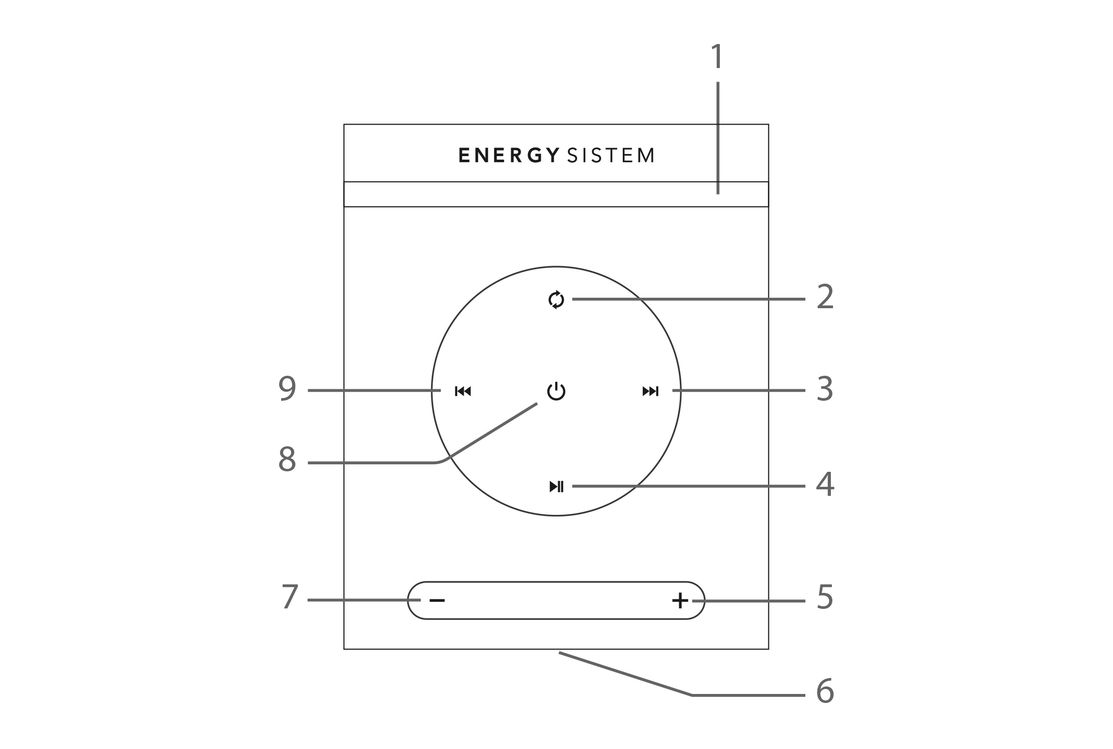
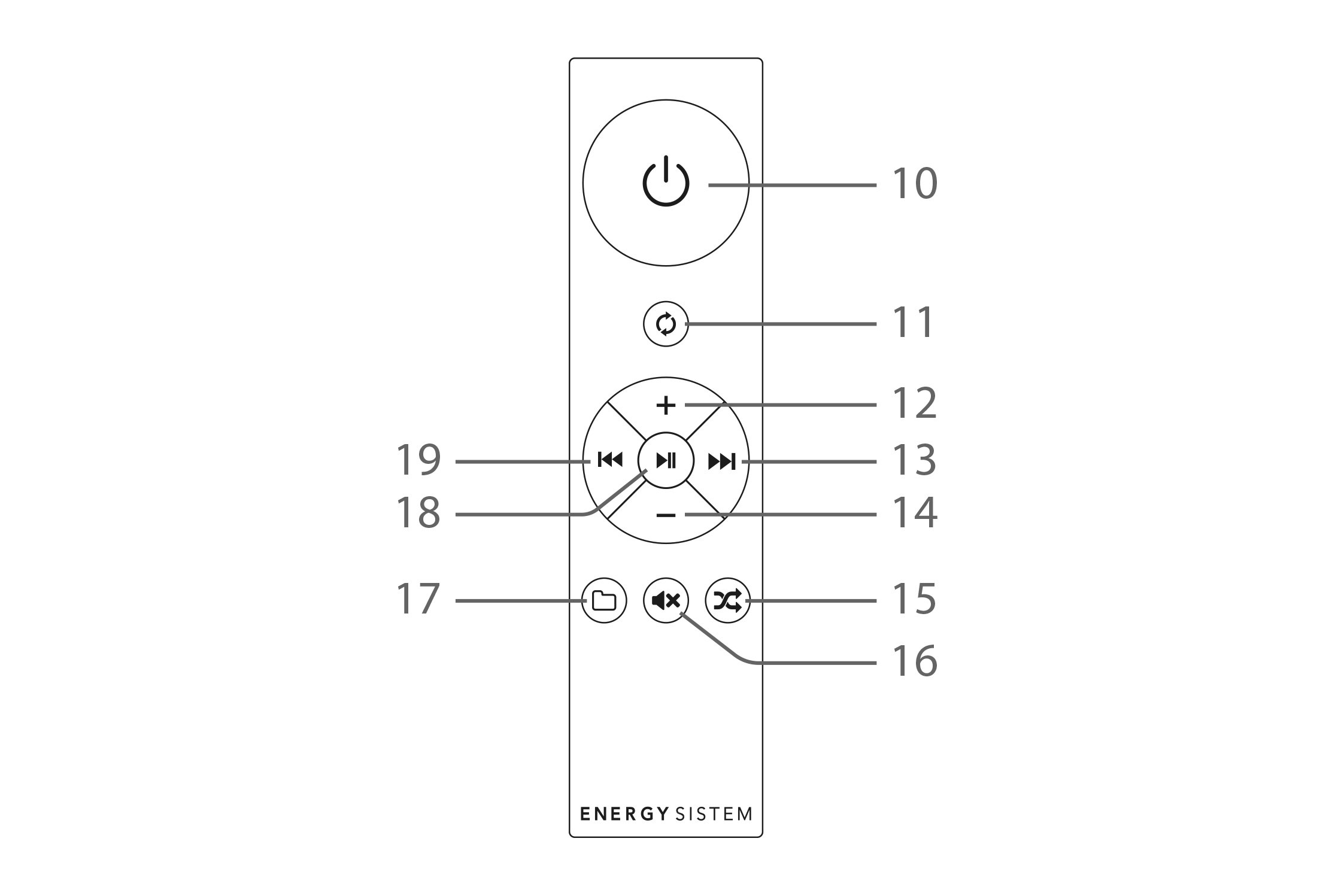
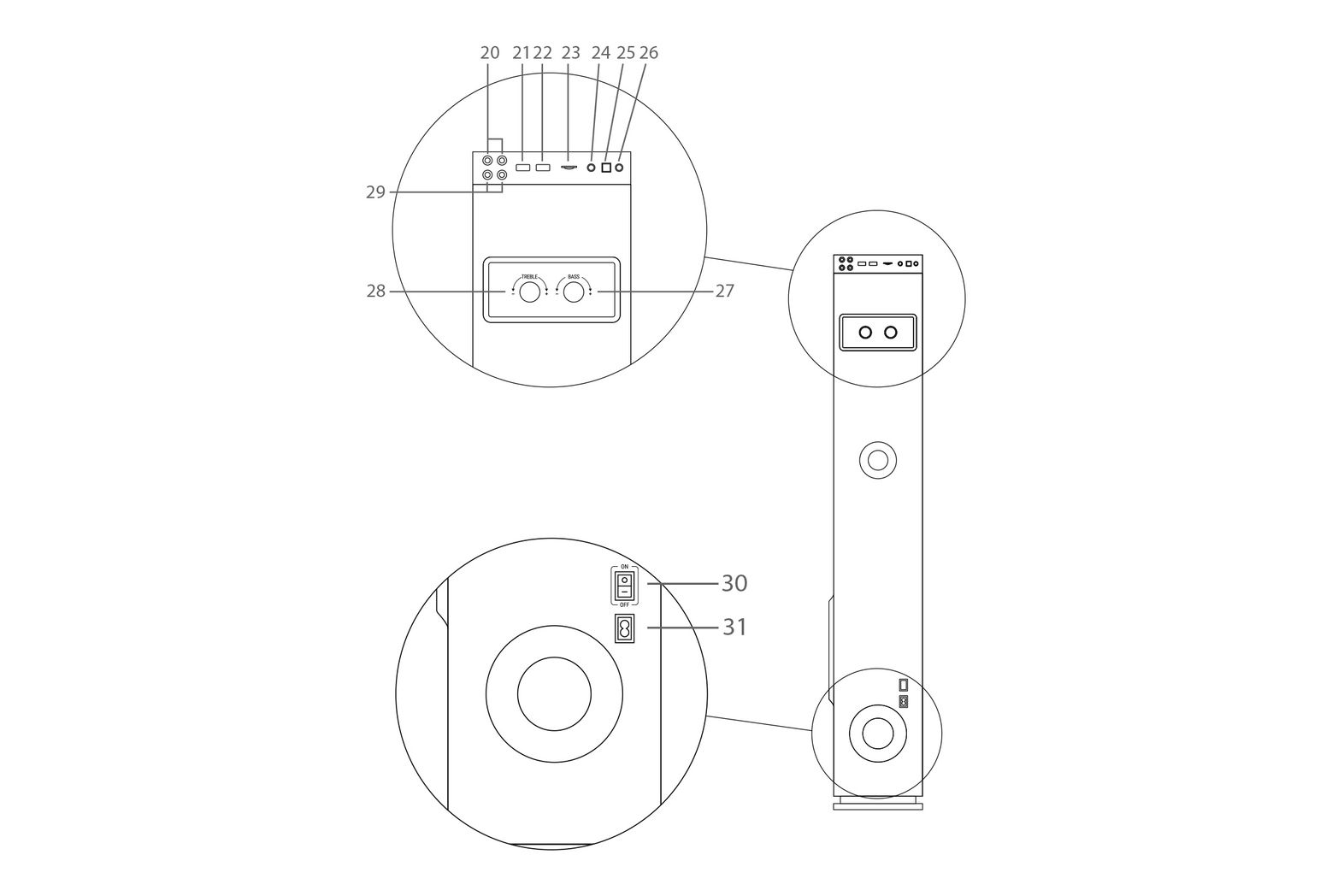
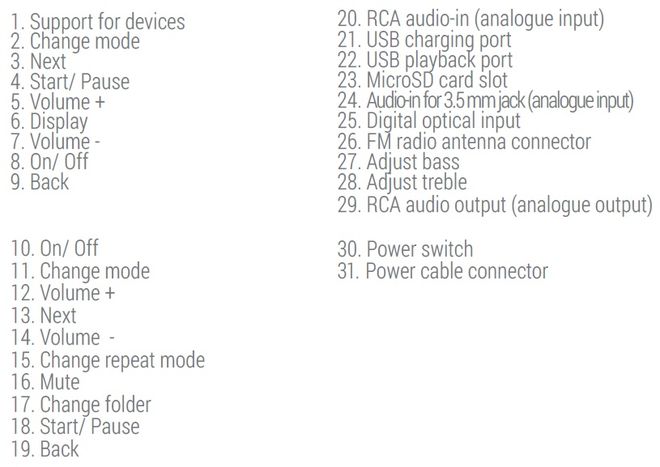
Switching on and off the device
Once the Tower 8 g2 has been plugged into a socket, turn it on by moving the power switch (30) on the back side of the tower to the "ON" position. From that moment on, you can turn it on or off by pressing the On/ Off button (8) on the top panel for 2 seconds or the On/ Off button (10) on the remote control.
If you are not going to use the tower for a long period of time, we recommend to turn the power switch on the back side to the "OFF" position.
Change function
In order to select different functions, press Change mode (2) or (11). You will be able to see the selected function on the display (6).
In case that there are no units connected to the rear inputs ('USB', 'MicroSD', 'AUX 1' or 'AUX 2'), the Change mode (2) or (11) button will switch between FM Radio, Bluetooth, Aux (line-in) or RCA.
In case that all inputs are being used, the Change mode (2) or (11) will switch from one to another in the following order:
USB -> microSD -> Bluetooth -> Aux -> RCA -> Optical -> FM Radio
Bluetooth connection
In order to synchronize a Bluetooth device with your Tower 8 g2, select this mode by pressing the Change mode (2) or (11) button on the display or on the remote control and you will be able to see the word "Bluetooth" on the Display (6). At this point you can start the pairing process.
Press "connect" when you see "Tower 8 g2" on your Bluetooth device screen. The devices will be connected immediately. You will hear a sound that confirms that both devices have been paired correctly.
From that moment on, your Tower 8 g2 will synchronize automatically with that Bluetooth device whenever it is within a distance range of 10 metres.
If you would like to synchronize another Bluetooth device, press and hold the Start/ Pause (4) button for 2 seconds in order to carry out a new search.
Optical input (PCM)
Connect any device with a digital output (TV, amplifier, Hi-Fi player, etc) to the optical input using an S/PDIF optical cable. After doing so, change the selected mode by pressing the Change mode (2) or (11) button until you see the word "Optical" appear on the Display (6).
This way you will be able to play .wav or .flac files without interruption and make the most of your "Tower 8 g2".
Note: Set the TV in PCM mode.
Removable USB sticks and microSD cards
Your Tower 8 g2 allows you to play .mp3 and .wav files from USB sticks and microSD cards (up to 64 GB).
Connect the USB stick into the corresponding port or insert the microSD card into the corresponding slot. Your Tower 8 g2 will switch automatically to USB or microSD mode to play the content of the inserted storage card or USB stick.
Bear in mind that you will be able to switch the playback mode by pressing the Change mode (2) or (11) button.
If you turn off the Tower 8 g2 or remove any storage card or USB stick, the internal memory will save the moment when you paused playback. If you insert the same removable card or stick once again, playback will resume from the point at which it stopped.
To browse songs, press the Next (3) and Back (9) buttons on the display or the same buttons (13) and (19) on the remote control. To move to the next or the previous track, press and hold the Next (3) and Back (9) buttons on the display or the same buttons (13) and (19) on the remote control.
You will be able to browse through another folder by pressing the Change folder (17) button on the remote control.
Playback mode
Press the Change repeat mode (15) button to select between these 4 options:
1) ALL: All card or stick contents will be repeated.
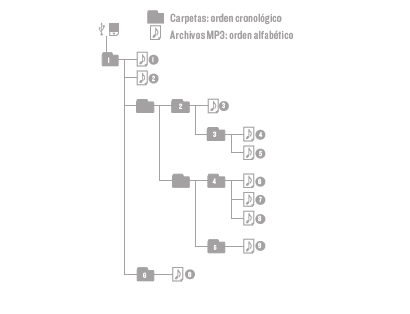
The folders of your external cards or sticks will be read in chronological order and the songs included in your folders will be read in alphabetical order.
If, for instance, you copy two music folders to an external card or stick, namely "A" and "B", and you first copy folder "B" and then folder "A", your device will play the first song in alphabetical order contained in folder "B" in the first place.
Here you have a diagram of the reading order:
2) ONE: The song you are listening to will be repeated.
2) FOLDER: The folder with the songs you are listening to will be repeated.
4) RANDOM: Random playback of all the contents of your removable card or stick.
Mini jack and RCA inputs (analogue inputs)
Your Tower 8 g2 features two analogue stereo inputs to connect external devices. The first one is a mini jack input and the other one is a RCA audio-in.
Mini Jack input
Your Tower 8 g2 features an Audio-in for 3.5 mm jack (24) which allows you to connect your music player using a 3.5 mm jack audio cable.
Once you connect the cable to this input, "Line-in" mode will be enabled automatically and you will see the word "AUX" on the Display (6). You will be able to change function even if the cable is still connected.
To start, pause or resume playback use the Play / Pause (4) button on the panel or on the remote control (18).
We recommend to use this input to connect small devices such as mp3 players or smartphones.
RCA input
This audio-in is situated on the top panel with the name "INPUT". It has been conceived to connect your TV or audio devices permanently.
You will be able to enable and disable this input using the Change mode (2) or (11) button.
We recommend to use this input to connect audio systems such as stack systems, televisions or mixing desks permanently.
Important: In both cases, you will have to control music playback (volume, equalizer or track changes) from the external device that has been synchronized with your Tower 8 g2.
FM radio
To be able to use this function, you have to tune in the radio stations first. To do that, connect the radio antenna on the tower top panel and press and hold the Start/ Pause (4) button on the display for two seconds while radio mode is enabled. The process may take a few minutes.
The radio stations will be saved to the memory of your Tower 8 g2, therefore it is not necessary to carry out a new search each time you switch it on. You will only have to carry out a new search if you place the device in a new location or if you move the power switch on the back side of the tower to the "OFF" position to cut off power supply. If you want to keep the radio stations, turn your Tower off by pressing the button on the top display or using the remote control. This way, you won't need to repeat the whole tuning process.
Press briefly the Start/ Pause (4) button on the display or the very same button on the remote control (18) once again to switch from one saved station to another.
You can use either the antenna provided with the product or connect the tower to the radio socket on the wall of your house using an IEC male to female cable. You will get better signal this way.

The radio of your Tower 8 g2 has RDS function, which allows you to see the name of the selected radio station on screen. It may take a few minutes for the information to appear on screen since it depends on the received radio signal.
RCA audio-out (analogue output)
Your Tower 8 g2 features a RCA audio output (analogue output) (29) which allows you to connect other self-powered speakers that have an analogue input in order to hear your music simultaneously through several speakers.
You can even connect a second Tower 8 g2 to your tower using a RCA male to RCA male stereo cable. To do that, connect one end of the cable to the output of the first tower and the other end to the input of the second tower. The signal will be transferred to the second tower, regardless of the enabled playback mode (BT, Optical, USB, microSD, AUX or Radio) and music will be played on both devices simultaneously.
USB port to charge external devices
Your Tower 8 g2 includes an USB charging port (21) to connect an USB cable and charge other devices such as smartphones, tablets or MP3 players, even if the tower is playing music.
"DC OUT" technical specifications:
- Voltage = 5V
- Current = 2A
Any device that requires more than 5V voltage cannot be charged.
Important: In case you are using the provided radio antenna, keep it away from the charging cable in order to avoid interferences while charging devices.
Sound equalizer
The device has two controllers at the back that enable users to adjust equalization:
- Adjust Mid/Treble (This function is indicated as "Treble")
- Adjust Bass (This function is indicated as "Bass")
Important: We recommend to adjust equalization if you connect a second Tower 8 g2 to the RCA output. In this specific case, we recommend that the "Treble" level is half of the "Bass"level.
Warranty
You can check the warranty terms here
Declaration of conformity
Issuer's name: Energy Sistem Technology, S.A. - CIF: A53107488
Address: C/ Calpe, 1 - 03509 Finestrat - Alicante (Spain)
Tel: + 34 966 83 03 24
We declare under our own exclusive responsibility that the product
Description: Sound tower
Brand: Energy Sistem
Model: Tower 8 g2
Manufacturer: Energy Sistem Technology, S.A.
Manufacturing Country: China
referred to in this declaration is in compliance with the essential norms and standards
EN 300 328 V2.1.1 (2016-11)
EN 301 489-1 V2.1.1 (2017-02)
EN 301 489-17 V3.1.1 (2017-02)
EN 62479:2010
in conformity with the essential norms and standards of the Directive 2014/53/EU of the European Parliament and of the Council of April 16th 2014.
Finestrat, 01st July 2017.

Marco Antonio Velázquez Fierro
Product Management Director
