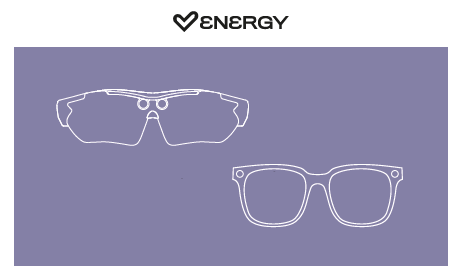
Thank you for trusting us and purchasing your new Energy CamGlasses. We hope you enjoy it.
Quick start guide
Consult the quick guide by clicking here.
FAQs
-
Can I use the Energy Sound Glasses while charging the battery?
This is not possible for safety reasons due to compliance with current CE regulations. -
How can I force the Energy Sound Glasses to turn off?
Connect the charging cable and the charging cable to a 5V USB power adapter and the headphones will turn off automatically. - Can prescription lenses be fitted to Energy CamGlasses? Energy Sistem is not liable for any damage caused by attempts to fit prescription lenses to these models; the warranty will be voided if this process is carried out. These devices contain electronic components that may be damaged during the installation of prescription lenses.
Technical Specs
Camera
- 8MP Sony IMAX 219 Camera
- 8MP Photos
- 1080P @30fps videos
Audio
- Frequency response: 20 Hz ~ 20 kHz
- Driver diameter: 10x13 mm
- Type: dynamic
- Design: Open sound
Wireless connectivity
- Bluetooth version 5.4, class II
- Operating frequency: 2.4 GHz
- Maximum signal strength: < 20.00 dBm
- Supported Bluetooth profiles: HSP / HFP / A2DP / AVRCP
- Up to 20 metres range
- Hands-free function
- Google/Siri compatible voice assistant
Handsfree microphone
- Type: Built-in
- Sensitivity: -38dB ± 3 dB
- Frequency range: 100 Hz ~ 10 kHz
Battery
- Capacity: 255mAh / 3.7 V
- Type: Lithium polymer
- Battery life at medium volume: 9 hours*
- Charging time: 2 hour
- Charging system: Magnetic Multipin
*This is an approximate figure. Battery life depends on volume selected and type of music played.
Cable
- Length: 50 cm
- Connector: Magnetic multipin - USB-A
Others
- Polarized UV400 lenses with anti blue ray (UrbanCam)
- UV400 lenses with anti blue ray (PaceCam)
- IP65
- Internal memory32Gb (4GB)
- APP: HeyCyan
Safety and maintenance
- Do not expose the device to shock, dust, moisture or high temperatures.
- Do not apply corrosive or abrasive cleaning agents to the device.
- Do not disassemble the device. Any repair must be carried out exclusively by qualified Energy Sistem Technology, S.A. personnel.
- Be sure to keep the device switched off when not in use and do not leave it for a long period of time with the battery completely discharged.
- Keep the device and its packaging out of the reach of children and pets to avoid possible accidents.
- Do not use the device while driving a vehicle.
Prevention of hearing loss
Listening to music at high volume levels for long periods of time can cause permanent hearing damage. To avoid hearing damage, we recommend turning down the volume of the player before starting music playback and then gradually increasing the volume to a comfortable, moderate listening level.
Warranty
You can check the warranty conditions here.
Manual APP HeyCyan
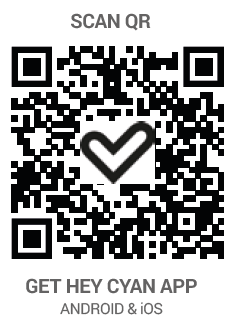
Download the HeyCyan app using the QR code found in the device's quick start guide.
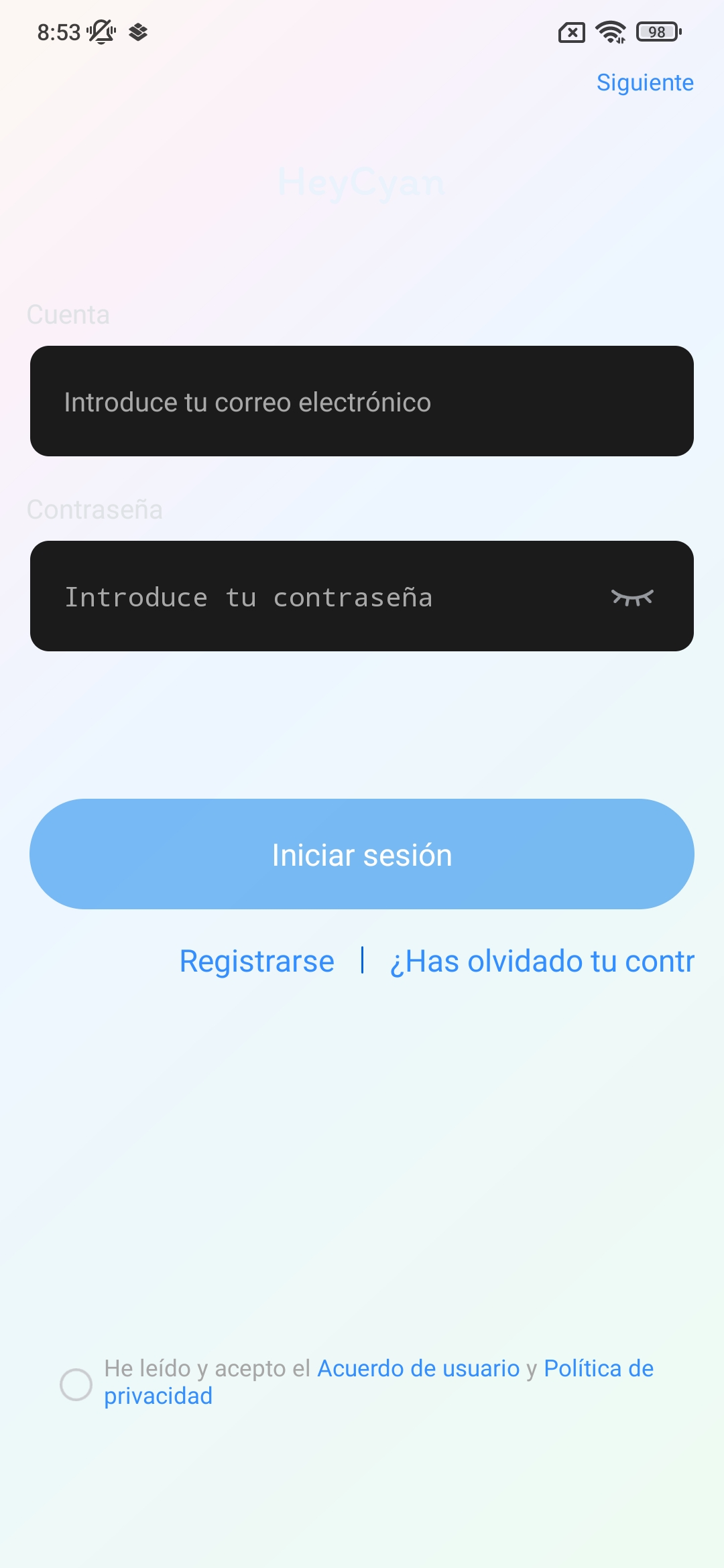
Once the application is installed, sign up or log in.
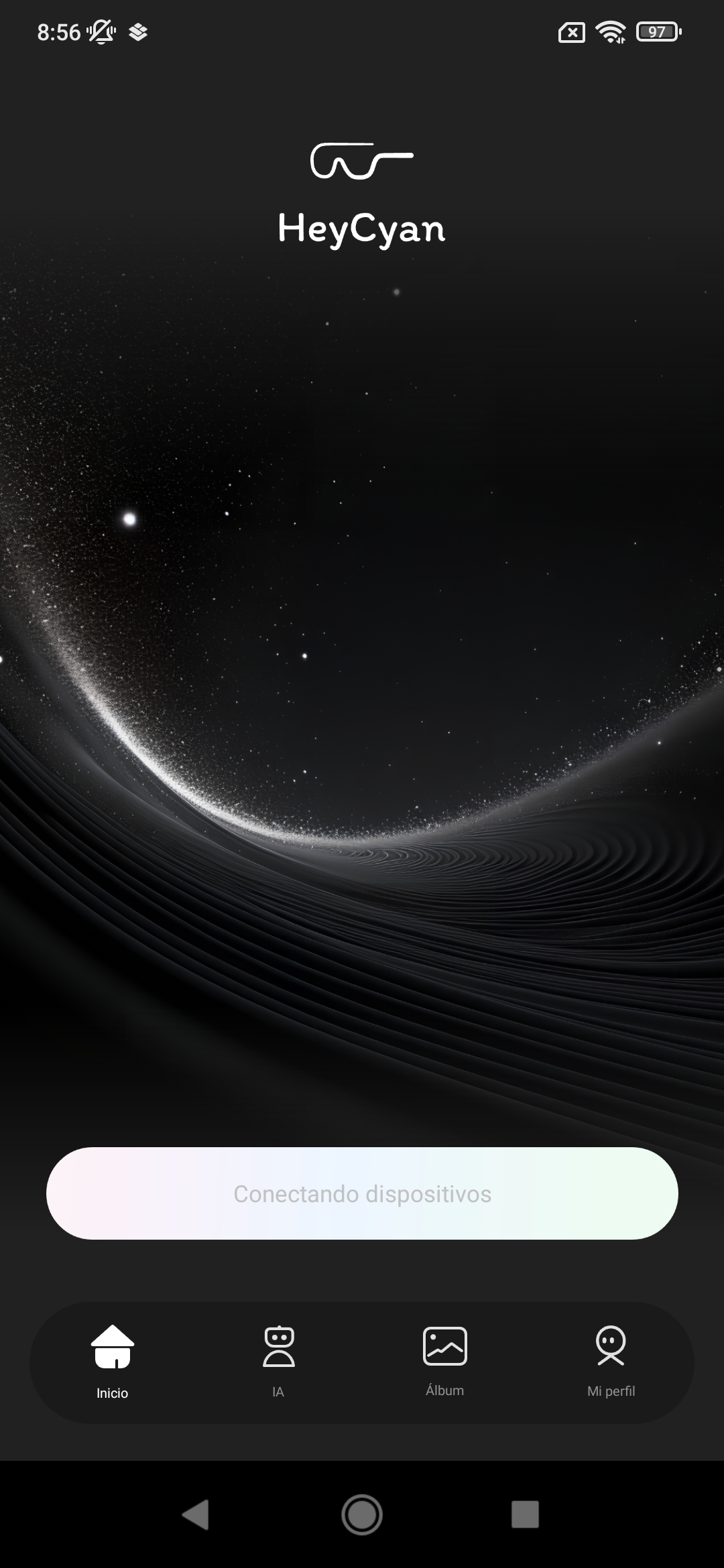
Once you have logged into the app with your user account, tap the button at the bottom labeled "Connecting devices."
A window will appear showing you how to prepare your device to pair correctly with the app. Once done, tap "Next."
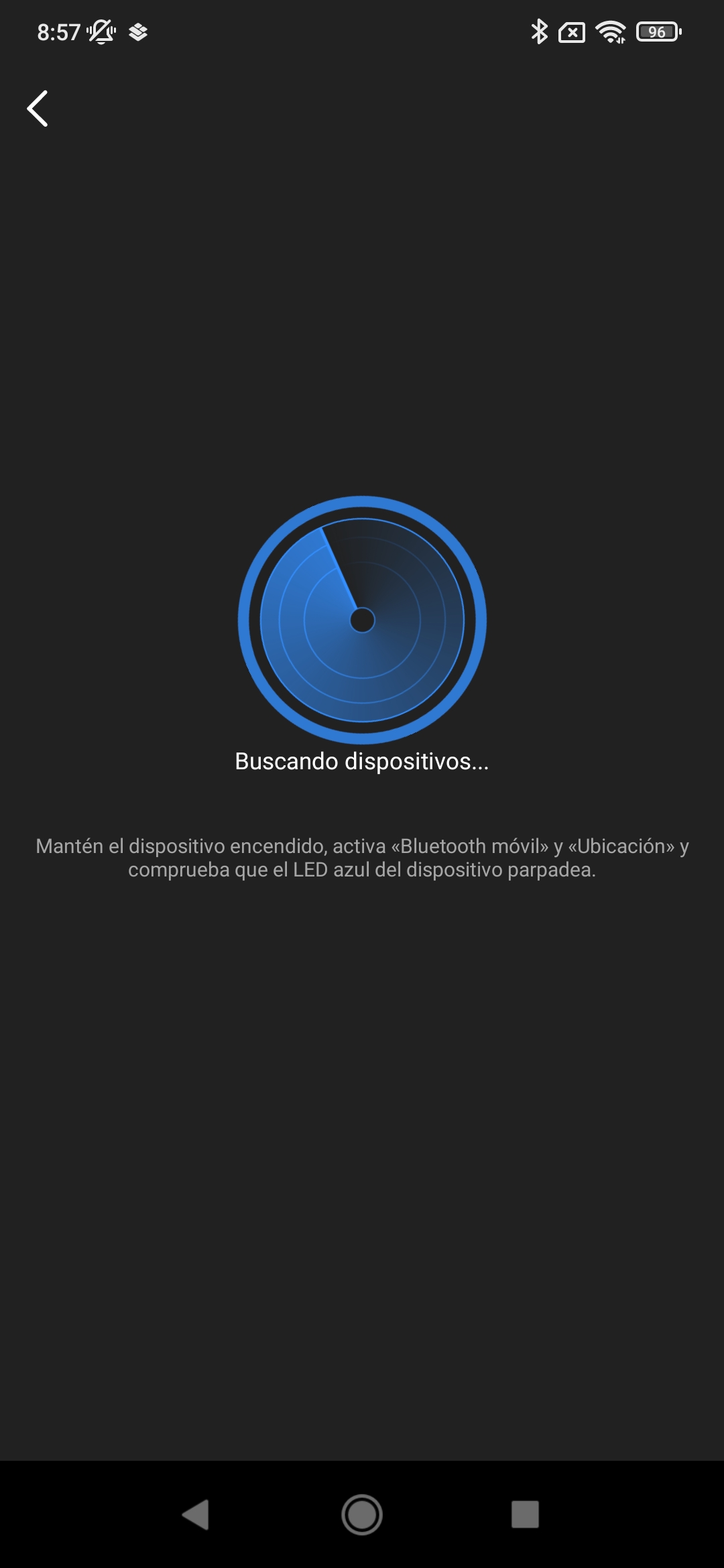
The app will start searching for nearby devices.
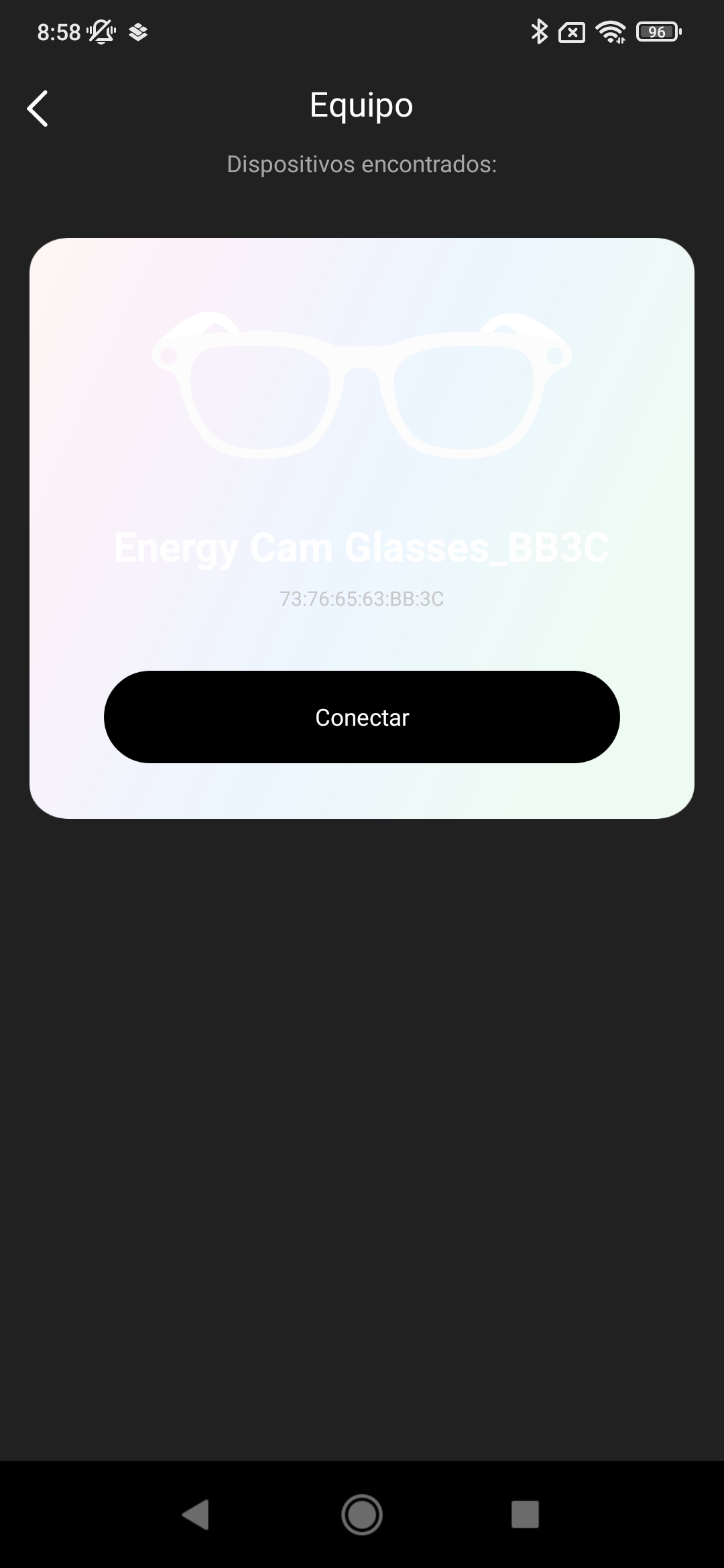
When your Cam Glasses are detected, a notification window will appear. Tap "Connect."
Once the glasses are connected, a brief interactive user manual will appear. Follow the steps to learn how your Cam Glasses work, or skip the tutorial.
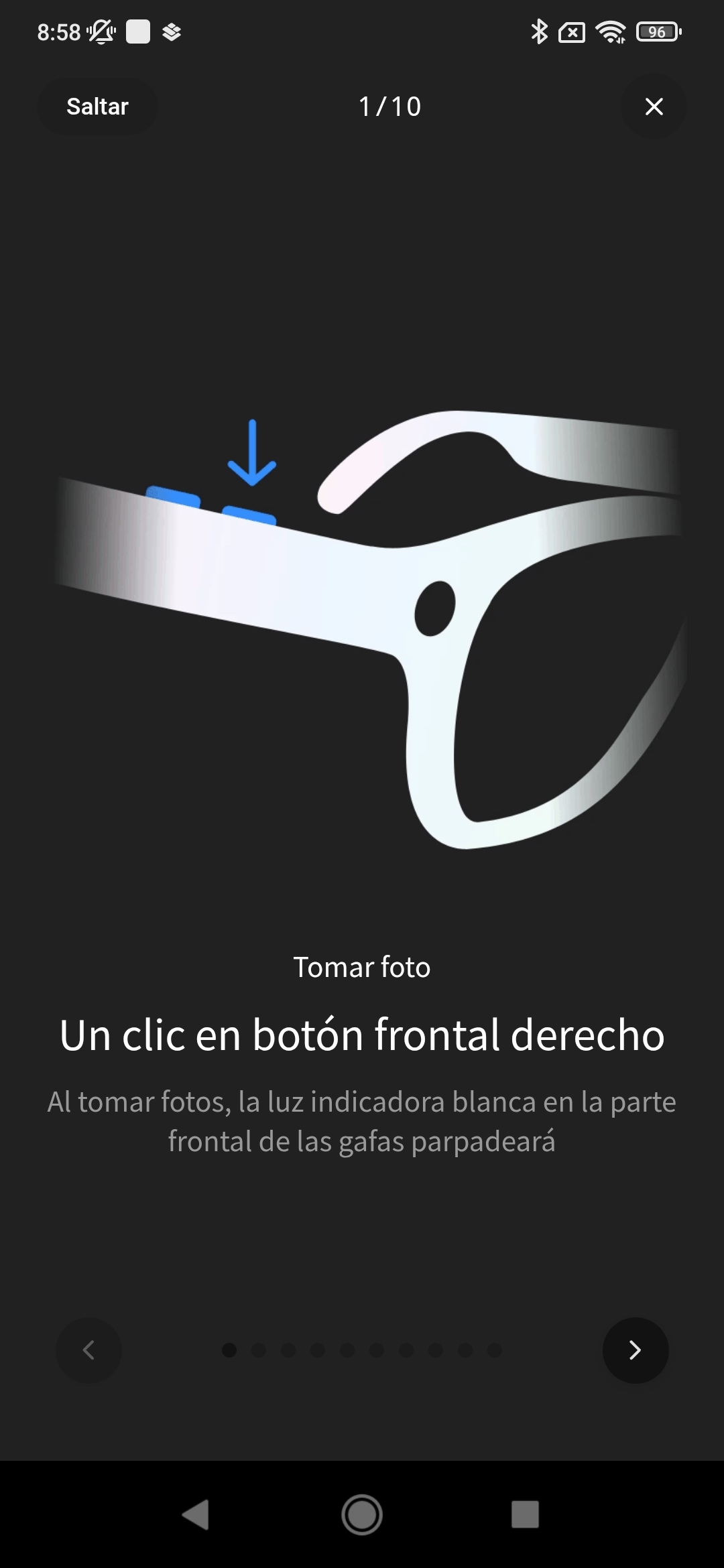
After the tutorial, the app's main screen will appear. Remember to connect the glasses to your smartphone's Bluetooth—if you haven't already done so—using the "Connect" button or via your phone's settings.
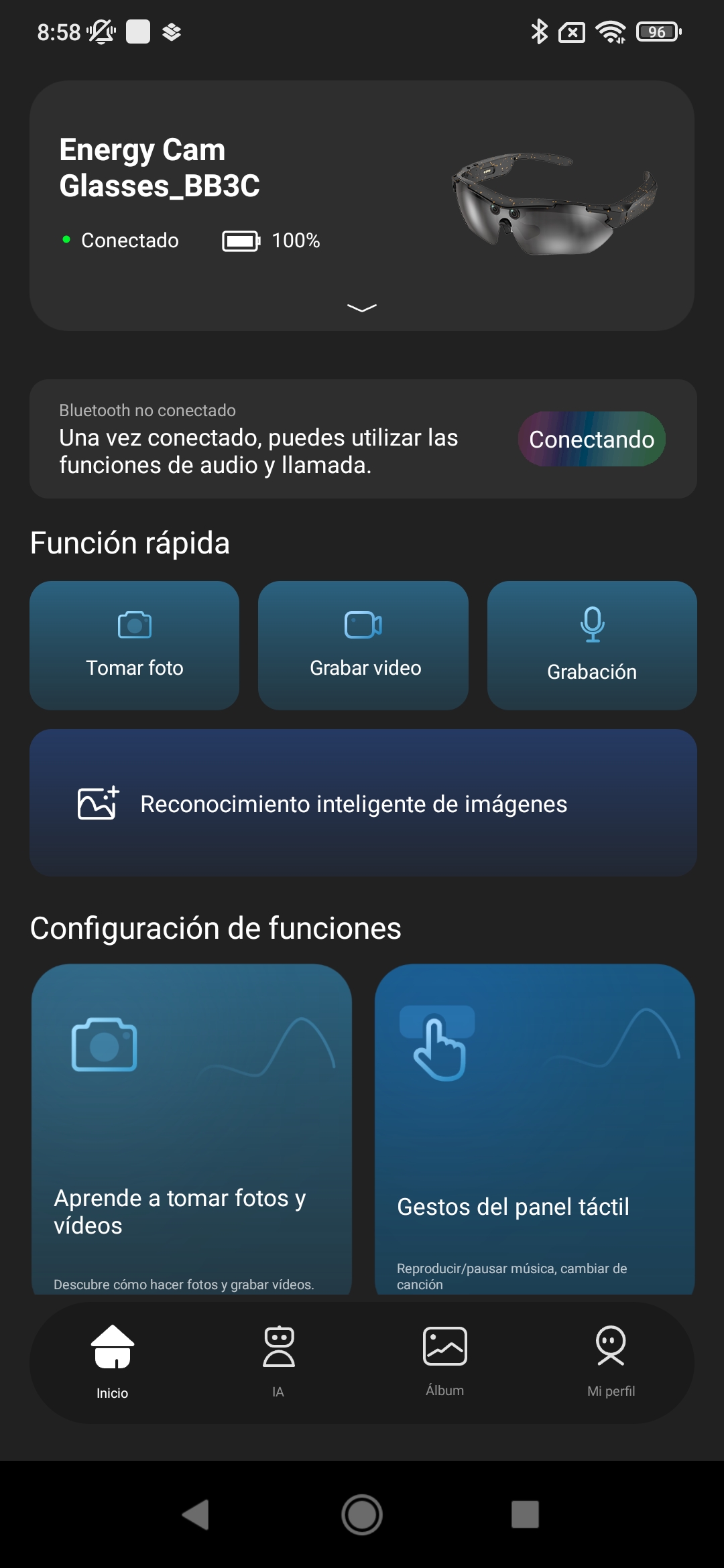
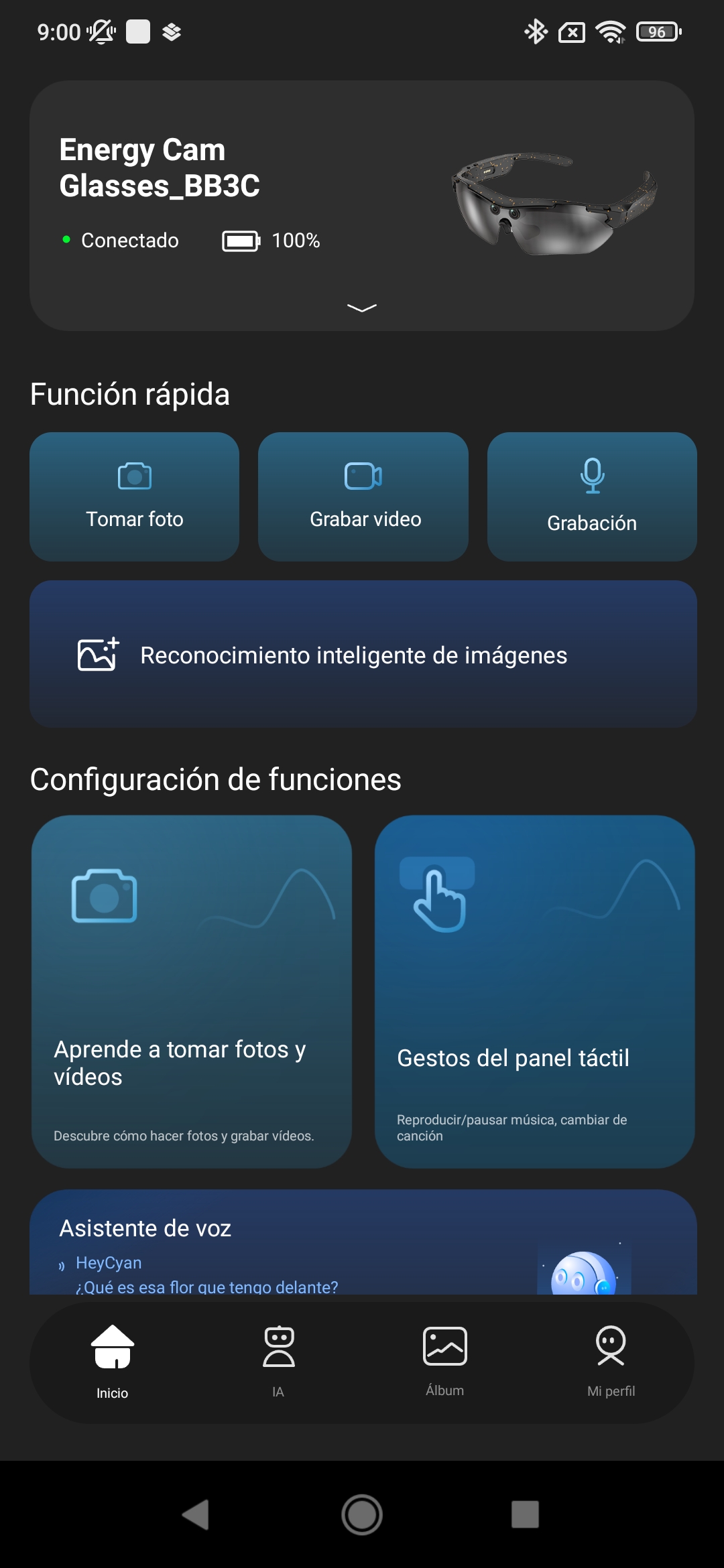
If you have made the connection correctly, the message indicating that Bluetooth is not connected should disappear.
If you have taken photos or videos and want to download them to your mobile phone, tap "Album" in the bottom menu. The next screen will show whether there is any content available to import. If so, tap "Import"*.
*When the content takes up a large amount of space, the app will prompt you to connect to the Wi-Fi network generated by the glasses themselves to ensure a much faster download.
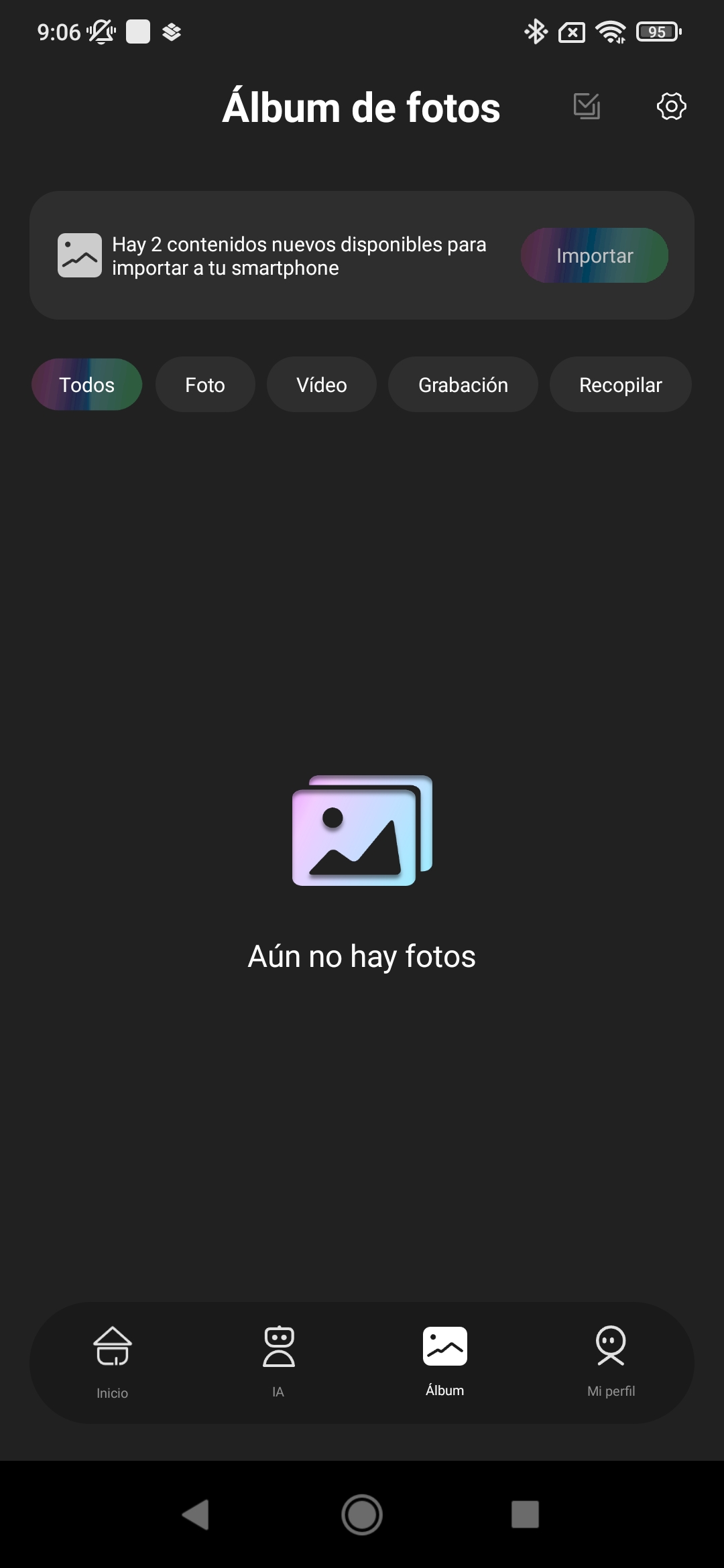
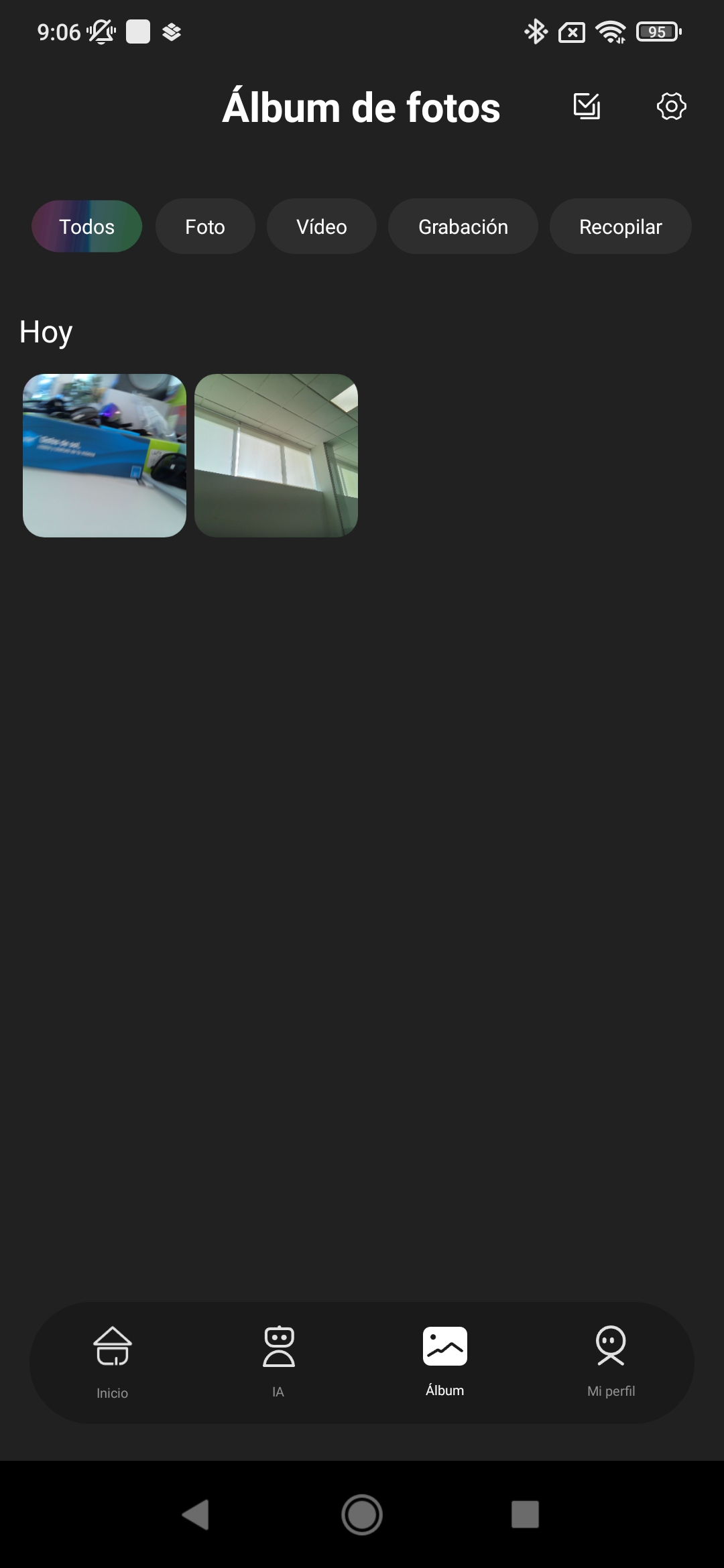
Once the content has been downloaded, you will be able to view it in the album, and it will also have been downloaded to your device's photo gallery.
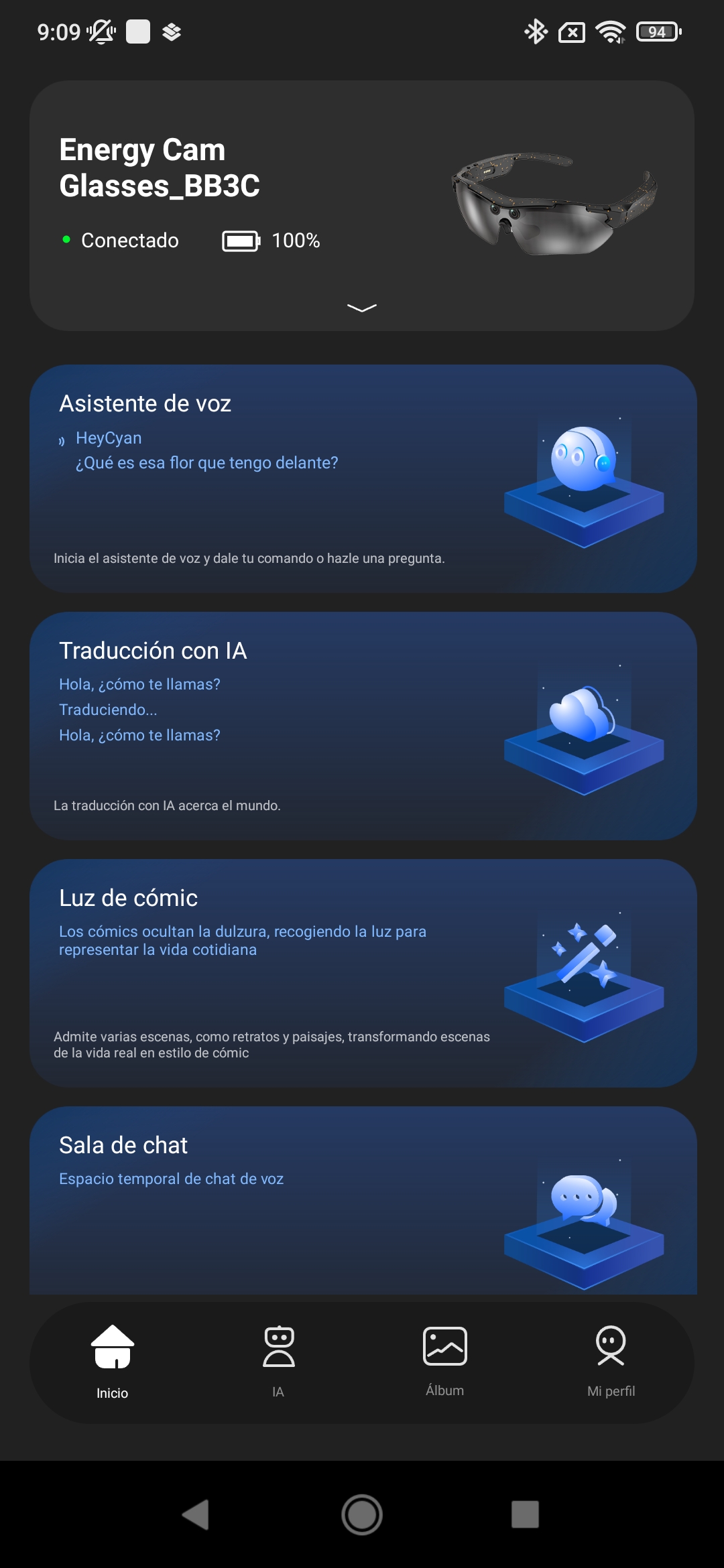
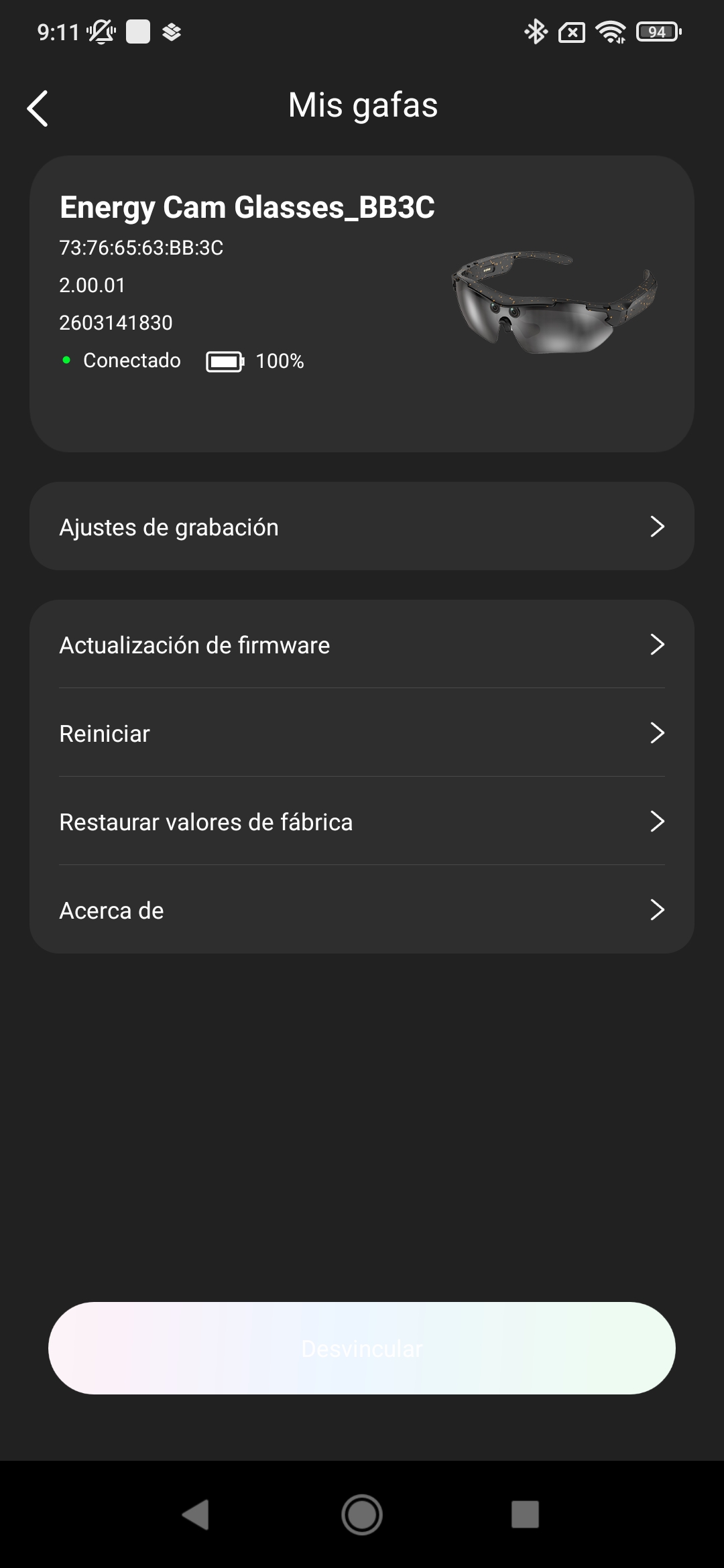
Your glasses appear at the top of the main screen. If you tap the small arrow at the bottom, the options for them will expand.
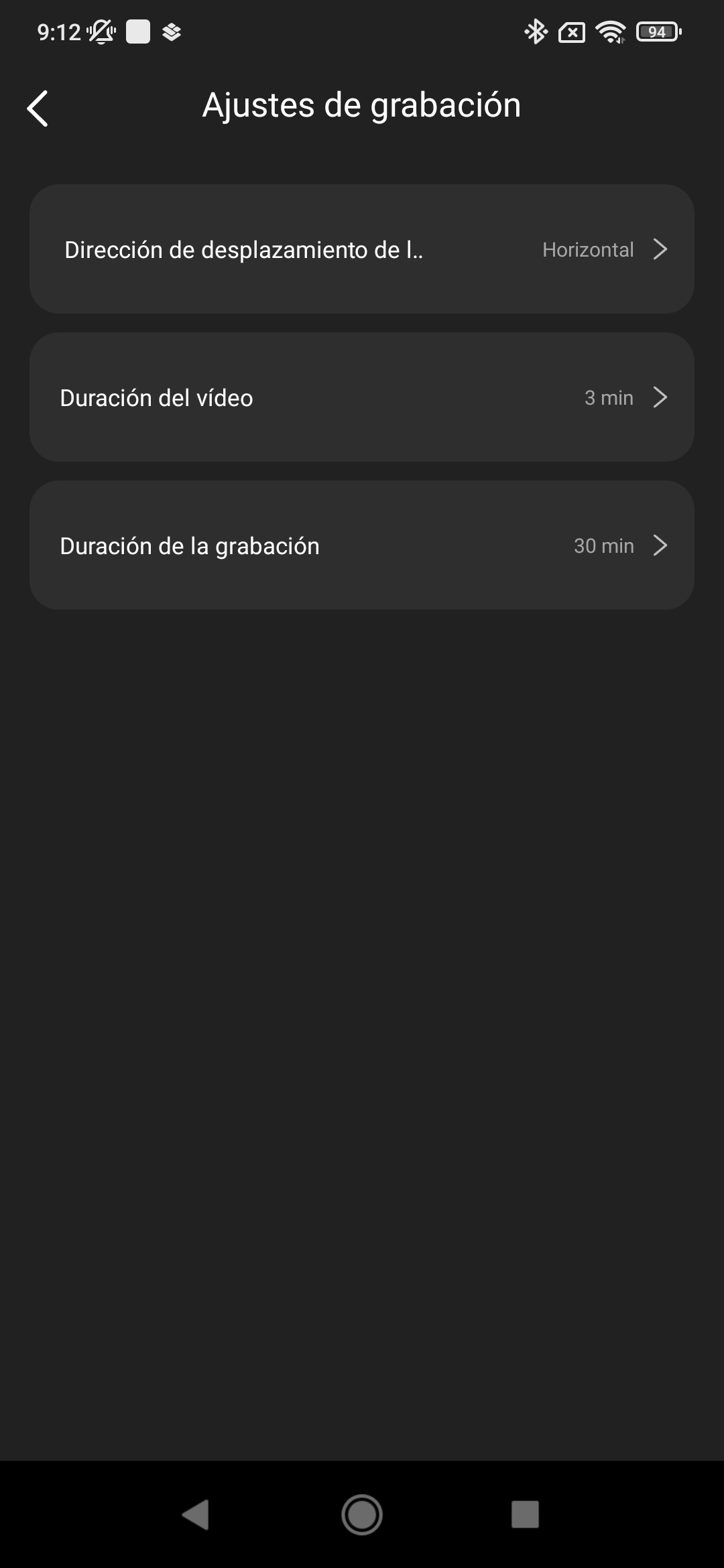
One of the most important sections here is "Recording settings," where you can select the video recording orientation (video recording scroll direction), the maximum duration of each video clip (video duration), and the total maximum duration of all video recordings (recording duration).
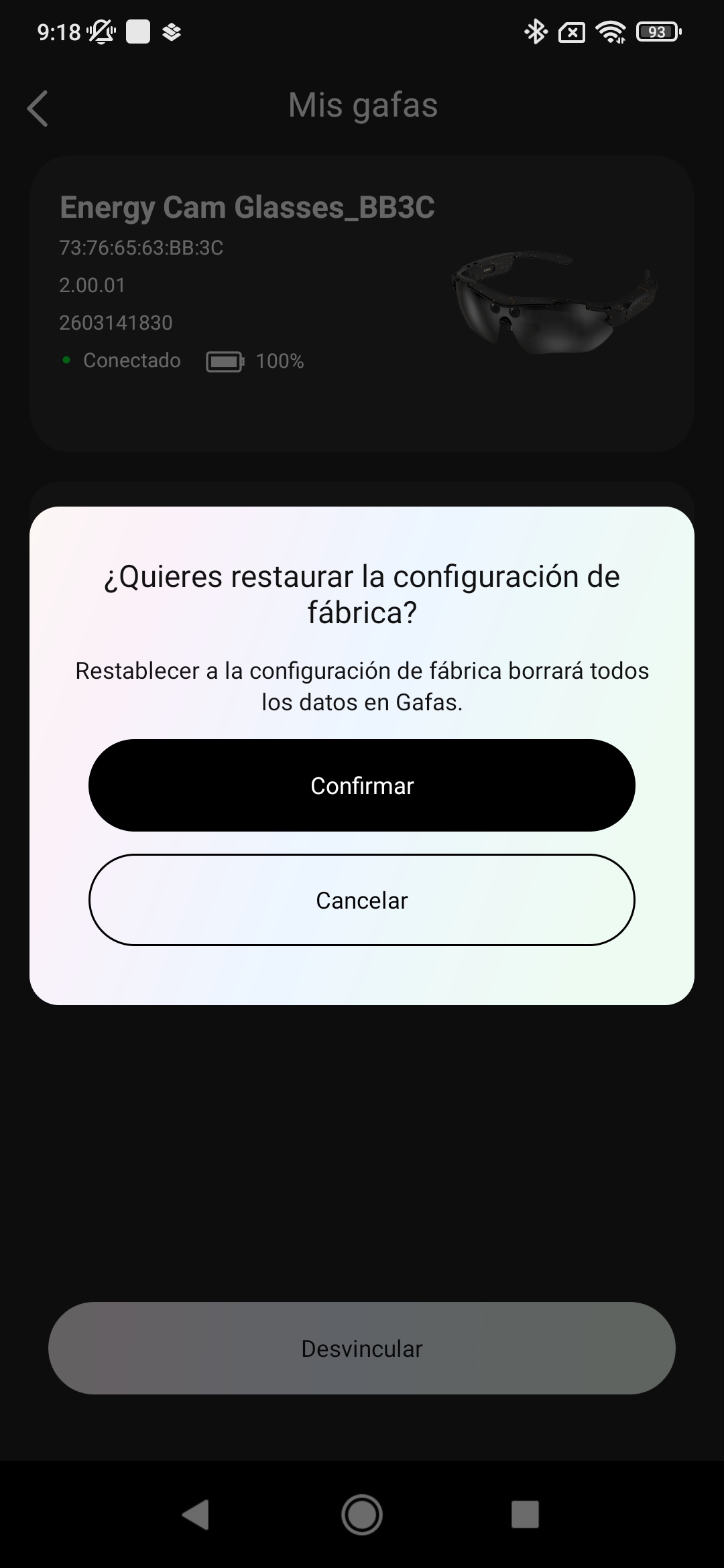
You can also restore the glasses to factory settings and erase all their content using the corresponding option.
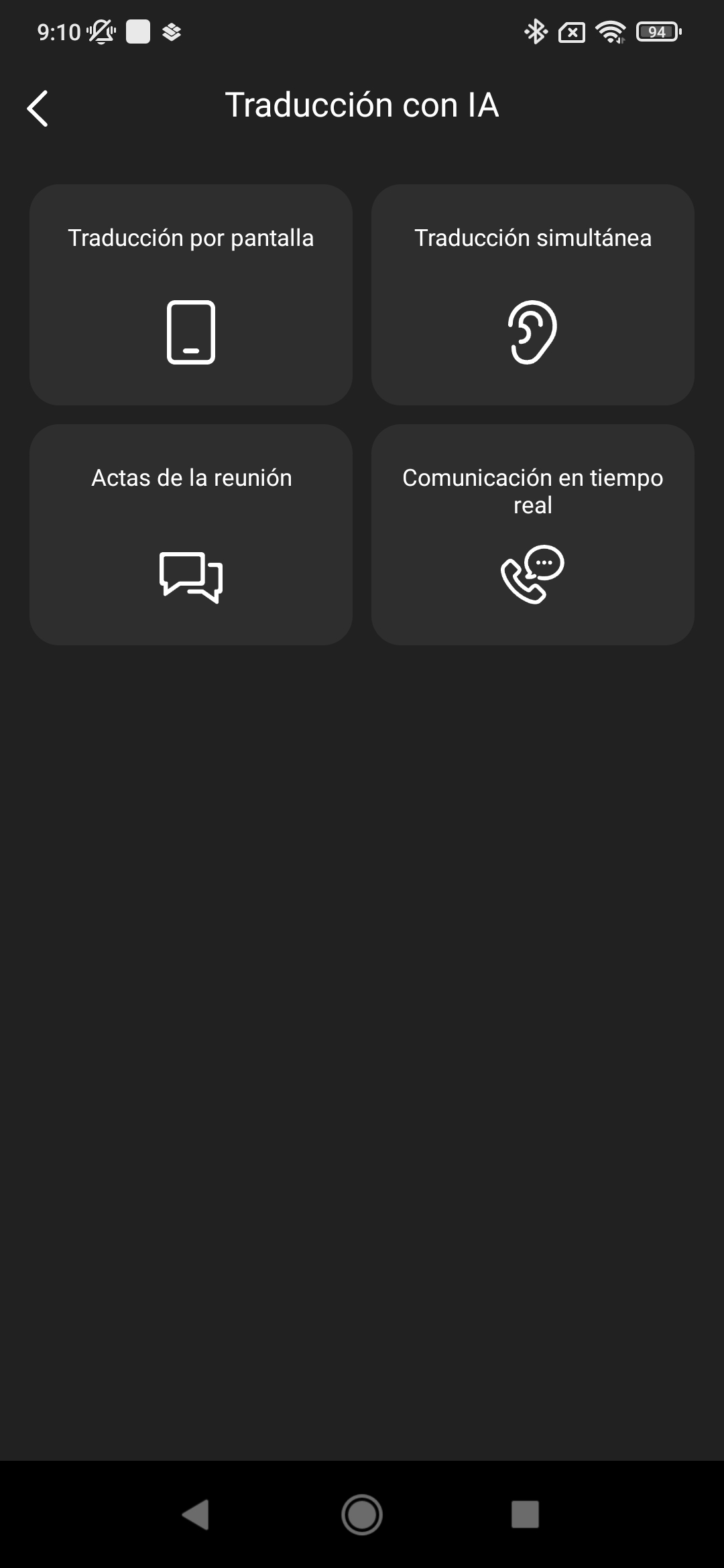
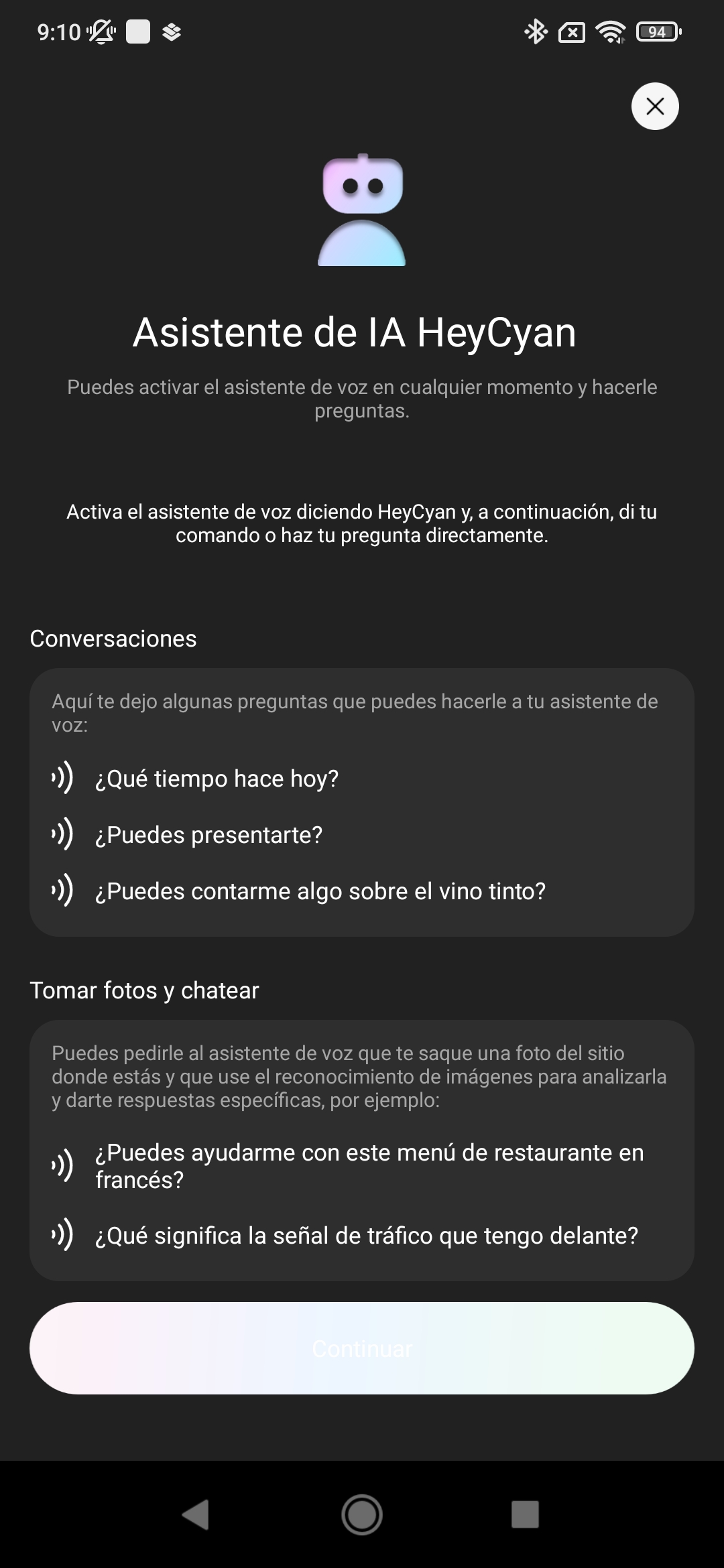
The main screen features various applications that complement photo capture, allowing the user to access an AI-integrated assistant and perform simultaneous translation across multiple languages, among other functions.
The application will be updated with new features.